

Automations and Alerts
Set up automations to automatically notify you or perform actions when your agent misbehaves in production.
Automations define conditions on evaluation metrics. When conditions are met, automations trigger alerts that can send notifications or execute actions.
Overview
Automations monitor metrics including:
- Trace Attributes (Duration, LLM Cost, Exception, Span Attribute)
- Triggered Behaviors
Each automation has conditions that determine when to trigger alerts. You can configure alert frequency thresholds and cooldown periods to control when notifications or actions execute.
Create an Automation
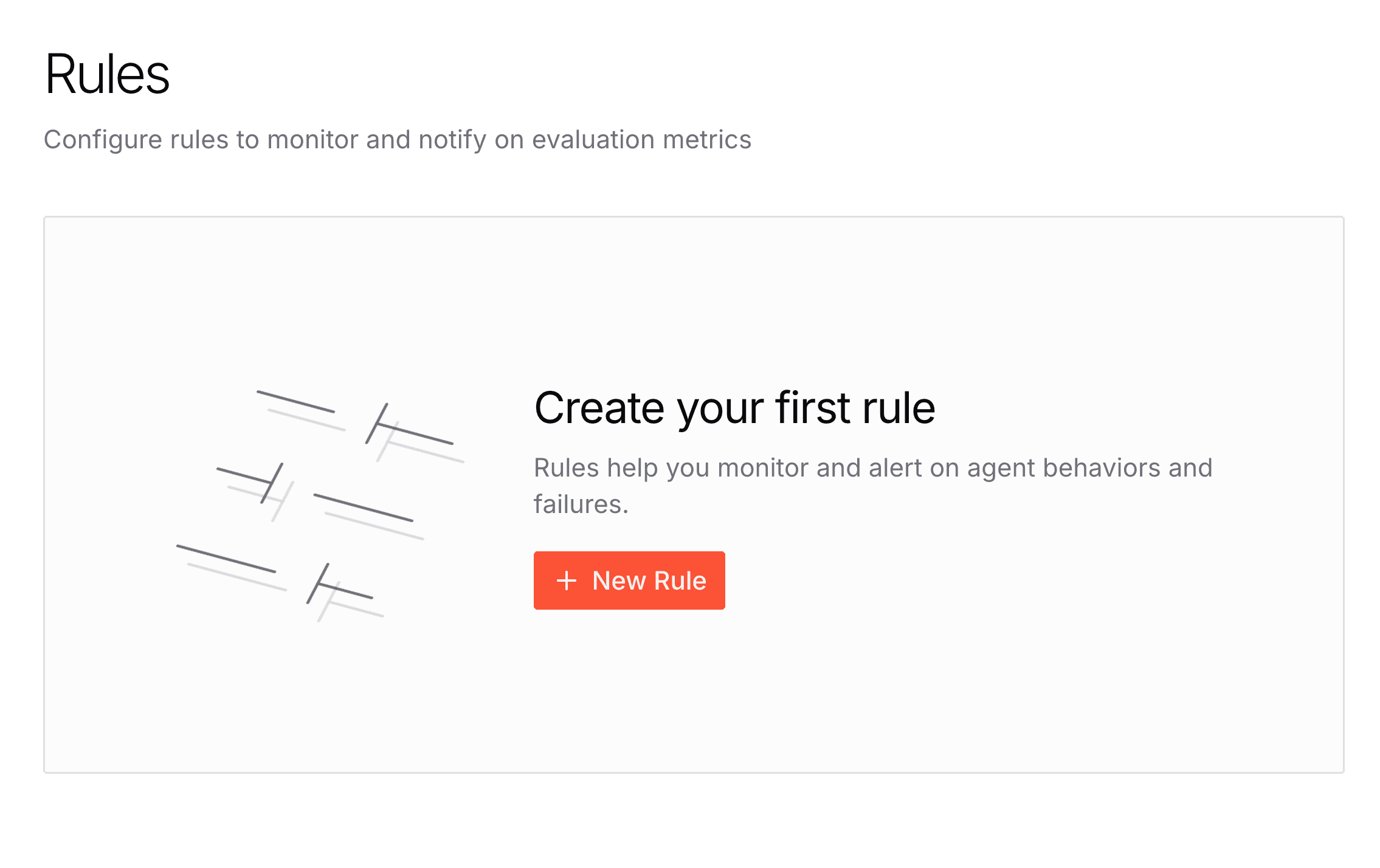
Create automations from your project's Automations section by clicking "New Automation".
Automation Configuration


- Name: Descriptive name (required)
- Description: Optional purpose explanation
Filter Conditions
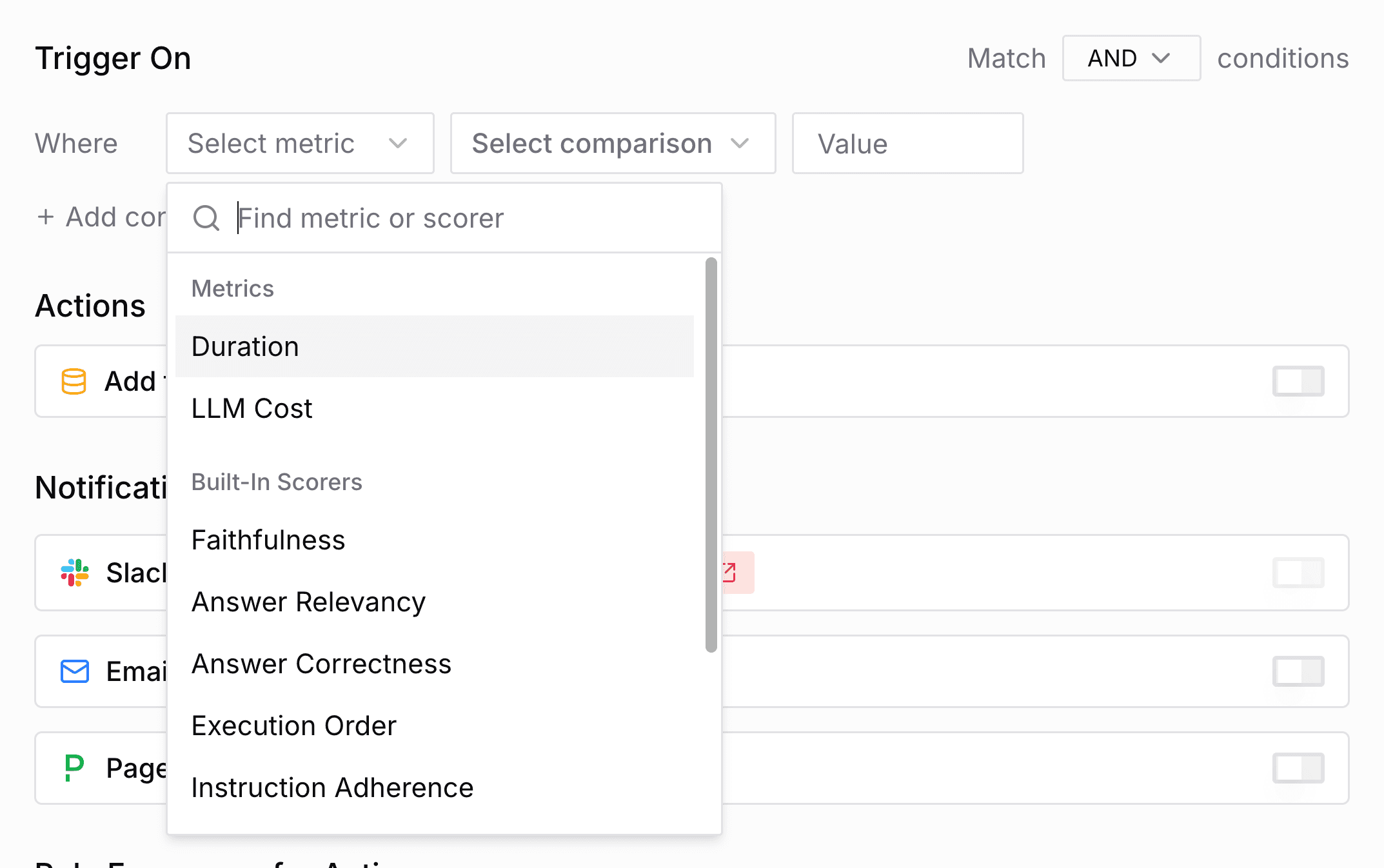
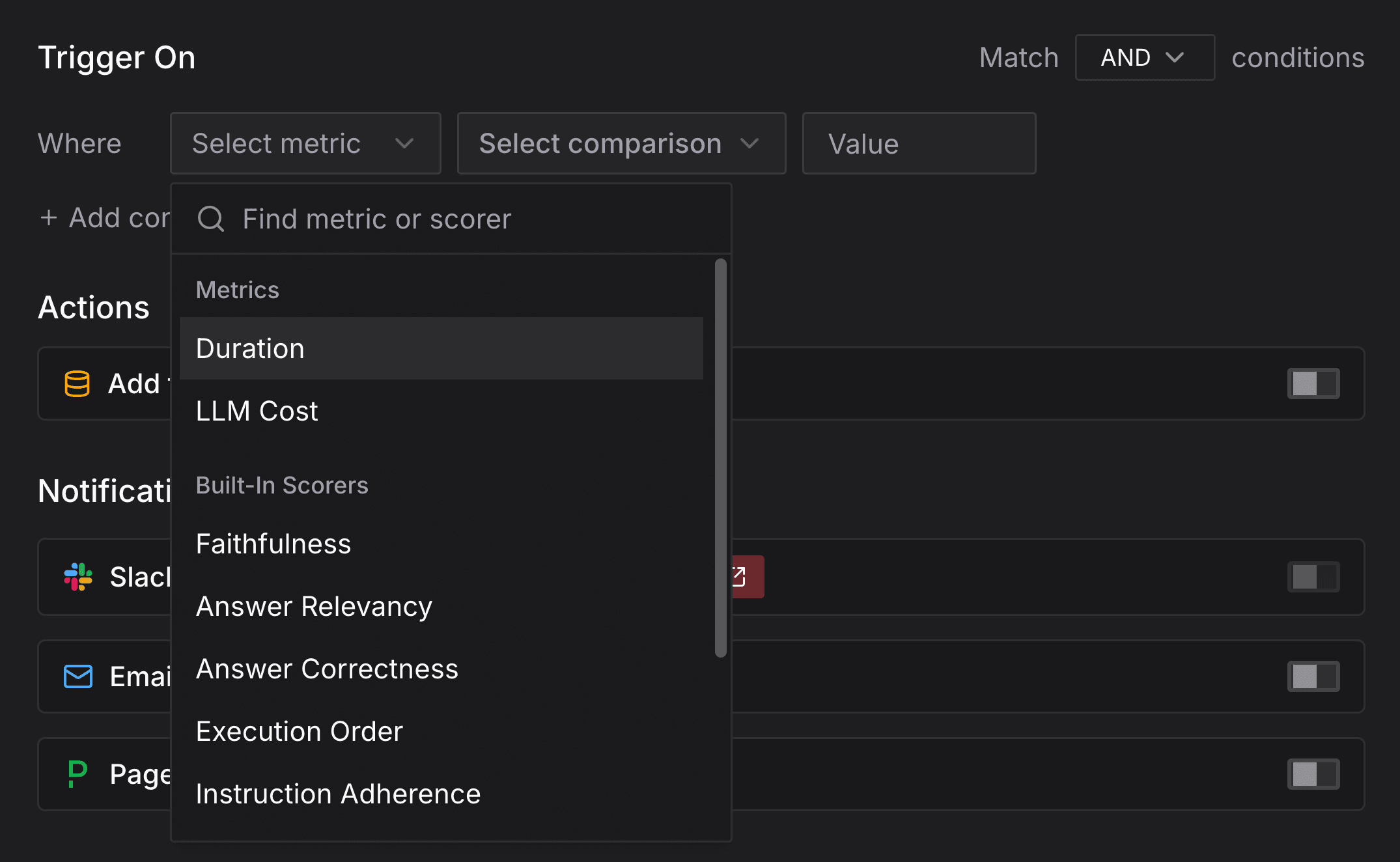
Define when the automation triggers:
- Match Type: "AND" (all conditions) or "OR" (any condition)
- Conditions: Add one or more conditions with:
- Metric: Depends on trigger type:
- Trace Attributes: Duration, LLM Cost, Exception, or custom Span Attribute
- Behaviors: Behavior triggered
- Operator: Depends on trigger type:
- Trace Attributes: Comparison (
>=,<=,==,<,>) for numeric metrics;exists,equals,containsfor Exception and Span Attribute - Behaviors:
detected
- Trace Attributes: Comparison (
- Value: Threshold value (comparison operators only)
- Metric: Depends on trigger type:
You can add multiple conditions with the "Add trigger" button.
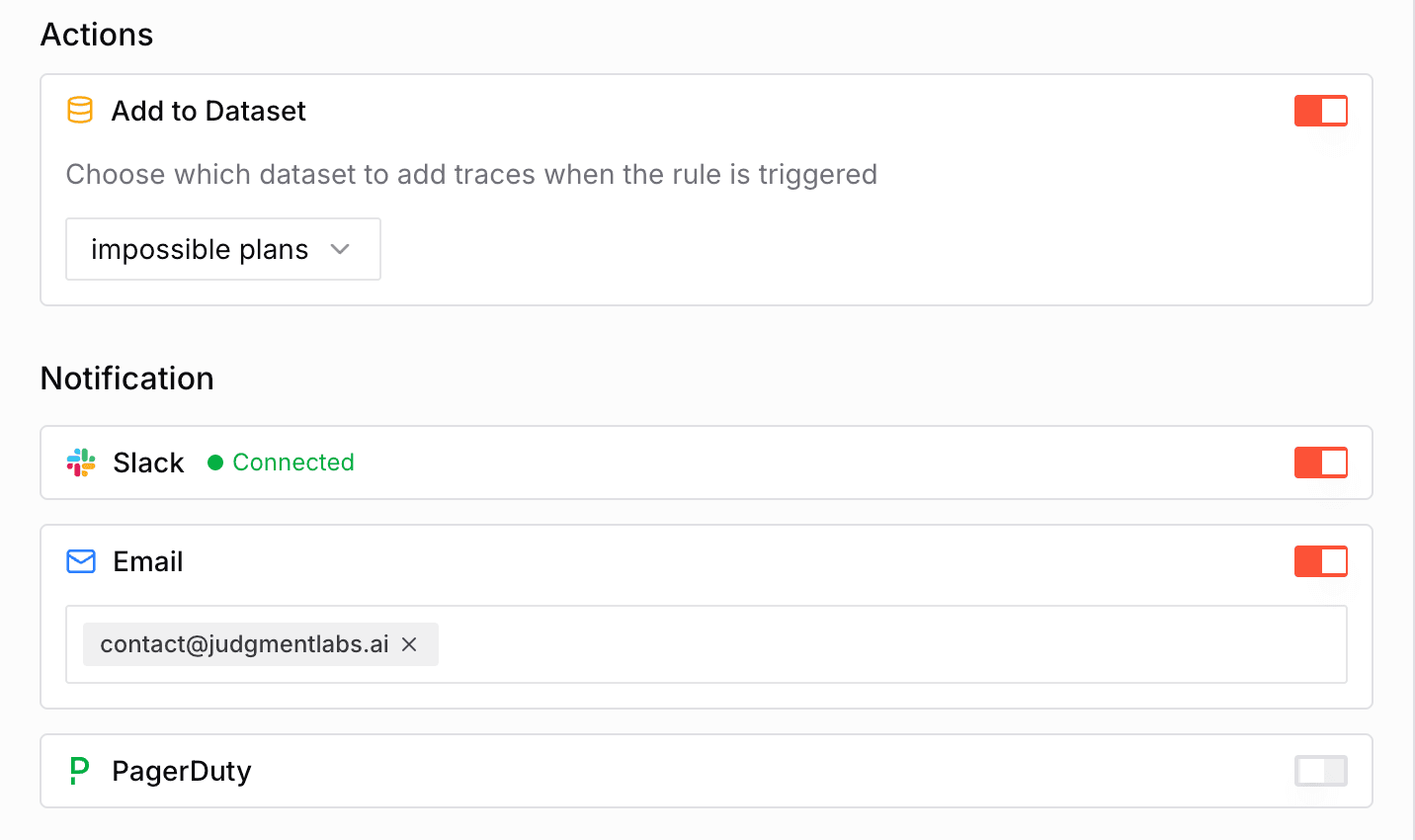
Actions and Notifications
Configure what executes when alert frequency is met and cooldown has expired:
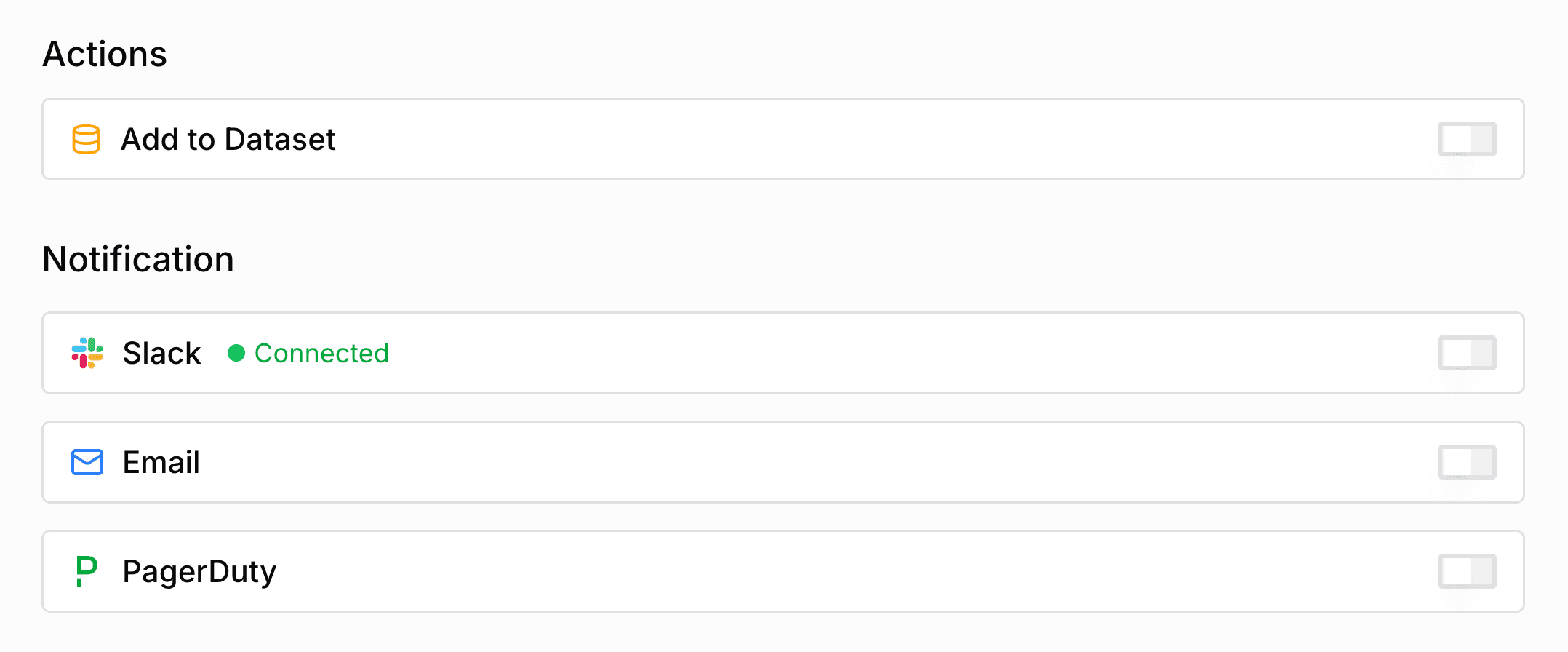
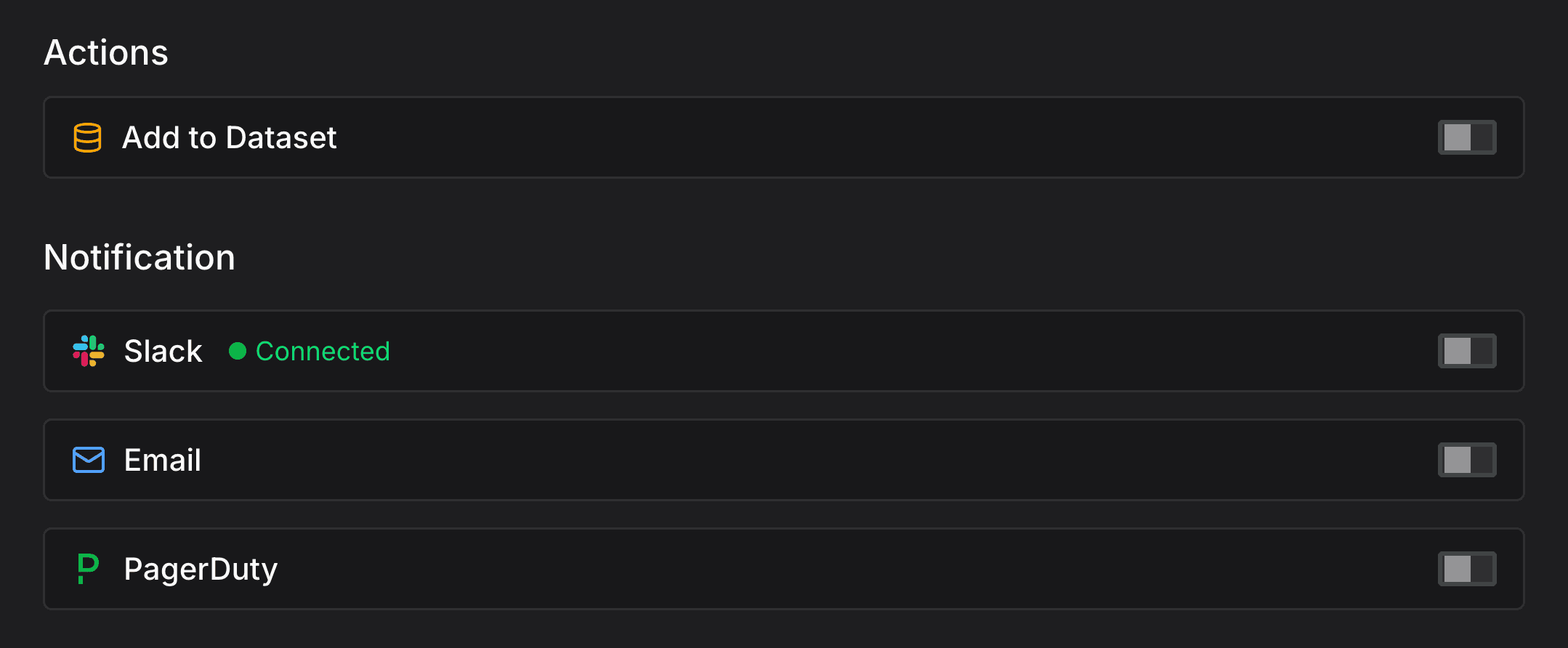
Below are the available actions and notifications:
Behavior Evaluation
Run behavior judges on the traces that trigger this automation. Select one or more judges to evaluate each matching trace.
You can optionally set a sampling rate (0–100%) to evaluate only a fraction of matching traces. For example, setting 25% evaluates roughly one in four traces. If left blank, all matching traces are evaluated (equivalent to 100%). Sampling uses a deterministic hash of the trace ID so the same trace is always included or excluded consistently.
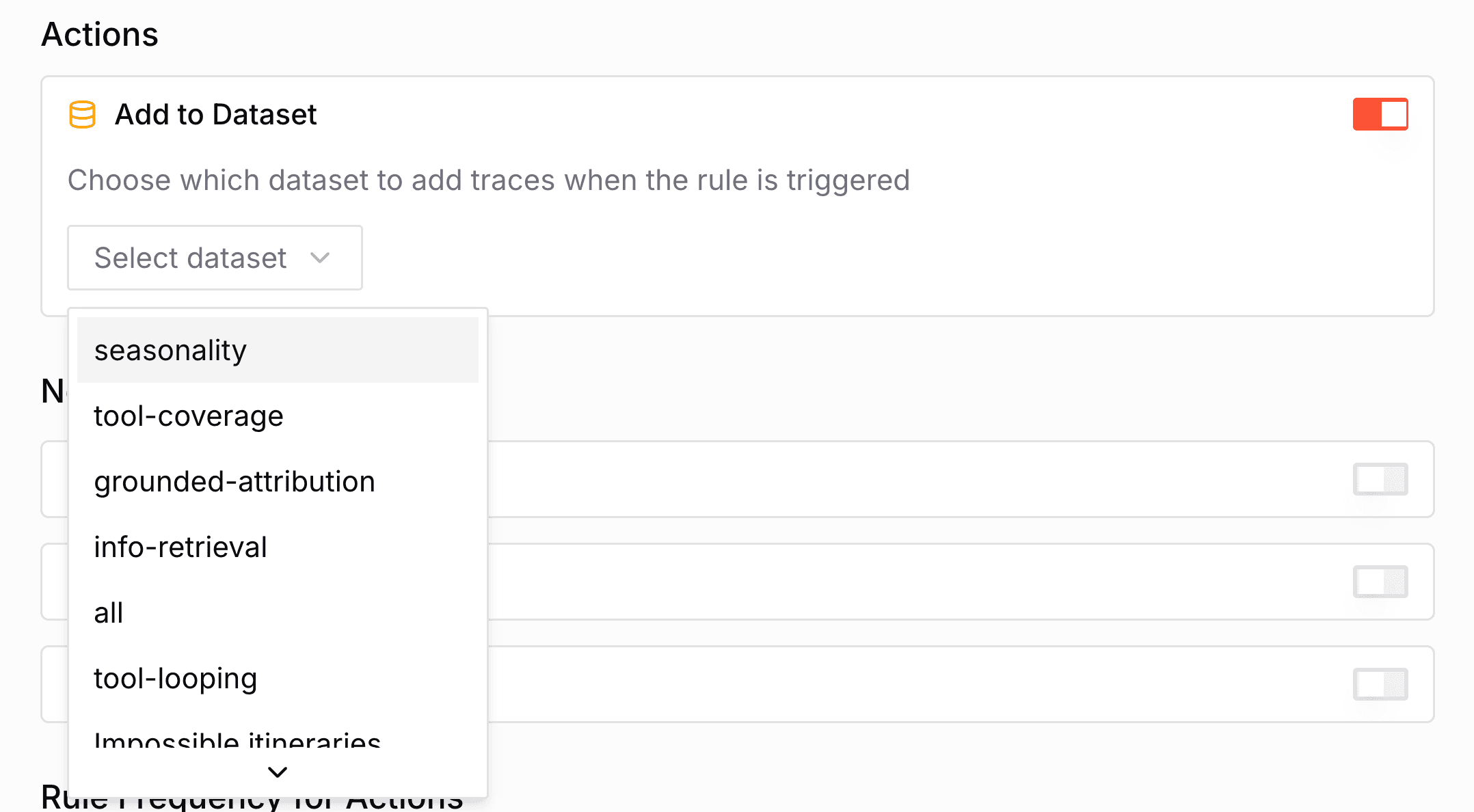
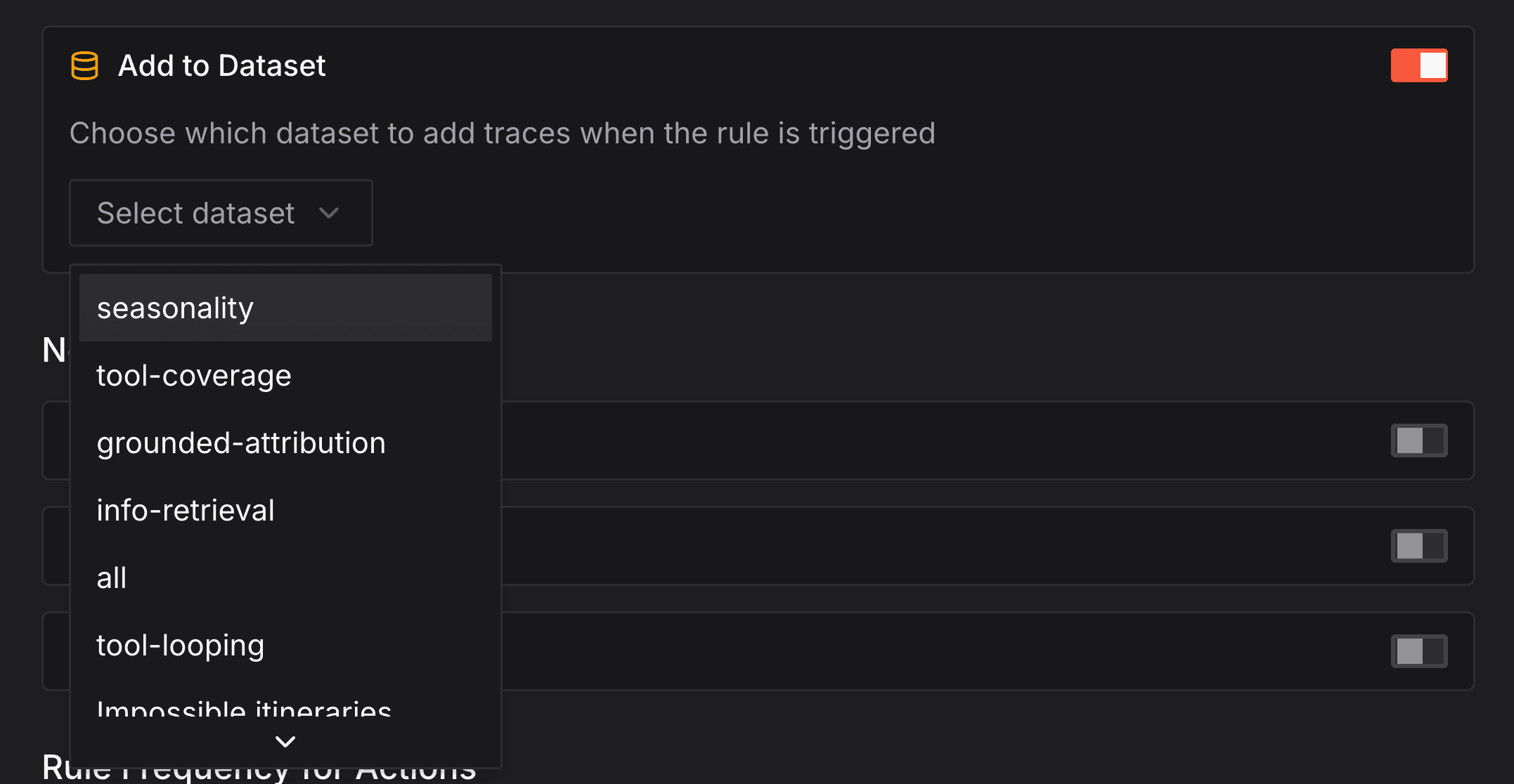
Add to Dataset
Automatically add traces that match the automation conditions to a dataset. Select target dataset from dropdown.
Email Notifications
Send notifications to specified email addresses.


Slack Integration
Post alerts to Slack channels. Connect Judgment to Slack via Settings → Notifications → App Integrations.
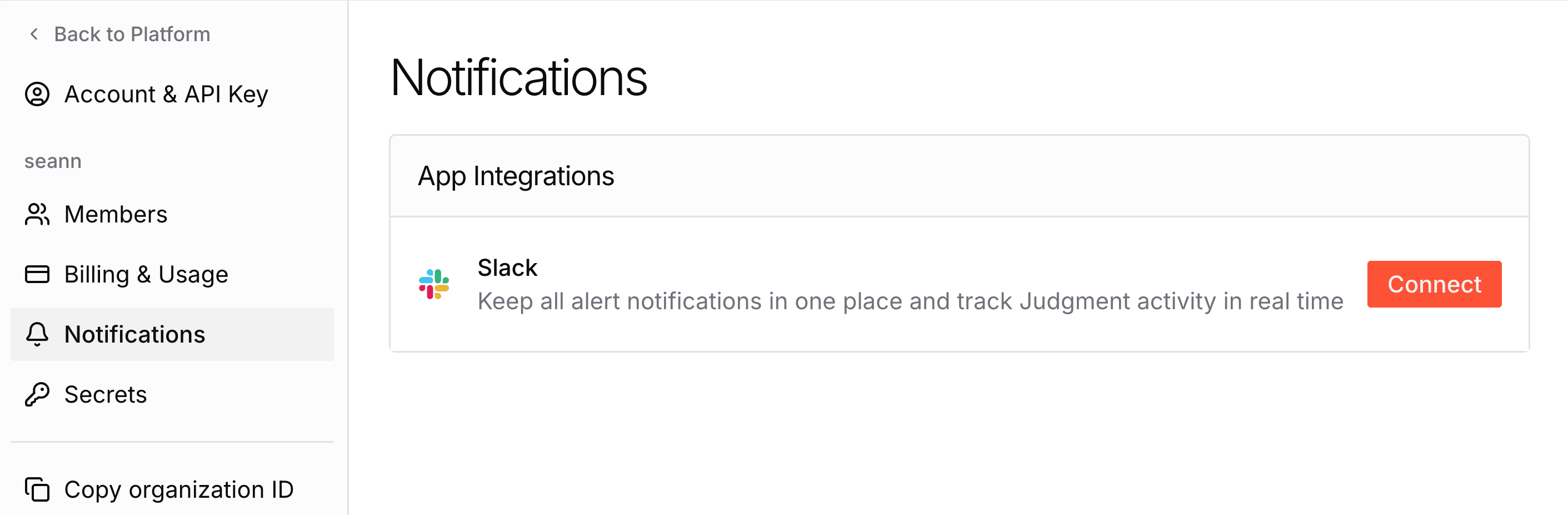
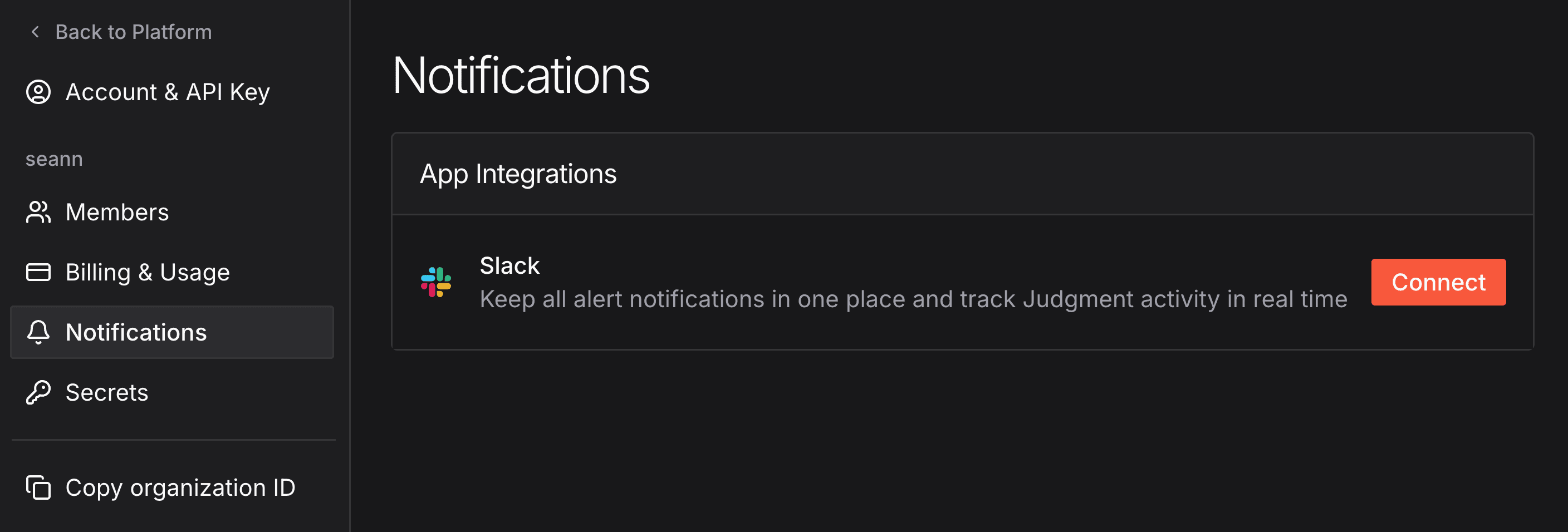
Once connected, use the following Slack commands to configure notifications:
/add-mention [organization-id] [@user_id]— Configure a user to ping when a notification is sent/remove-mention [organization-id] [@user_id]— Remove a user from being pinged/list-mentions [organization-id]— List all users being pinged by notifications/add-channel [organization-id]— Configure the current channel to receive notifications/remove-channel [organization-id]— Stop the current channel from receiving notifications/list-channels [organization-id]— List channels configured to receive notifications
A workspace can be configured to receive notifications from multiple organizations. organization-id must be provided in each of these commands to specify the relevant organization.
Webhooks
When the automation triggers, Judgment sends a signed JSON event to an HTTPS endpoint that you control. Judgment implements the Standard Webhooks specification, so you can verify deliveries with any library that conforms to it.
Configure the endpoint
Add the Webhook action. Judgment generates a signing secret for the endpoint. Copy it into your receiver's secret store.
Enter the URL that will receive deliveries. The URL must use HTTPS on the default port, must resolve through a public DNS hostname, and must not contain credentials. IP literals, localhost, and .local names are rejected.
Click Send test. Judgment delivers a synthetic event with the same shape as a real one, with test set to true. This lets you exercise your verification path before saving the automation.
Request format
Every delivery is a POST with a JSON body and these headers:
| Header | Description |
|---|---|
content-type | Always application/json. |
user-agent | JudgmentLabs-Webhooks/1.0.0 |
webhook-id | Unique delivery identifier. Retries of the same delivery reuse this value, and it matches the id field in the body. |
webhook-timestamp | Unix timestamp in seconds at which the request was signed. |
webhook-signature | Space-separated list of versioned signatures, each formatted v1,<base64>. |
Event payload
Version 1 defines a single event type, automation.rule.triggered:
{
  "id": "8f2b7ac1-4d1e-4c3a-9f70-6f6e1b2c9a05",
  "type": "automation.rule.triggered",
  "version": "1",
  "test": false,
  "created_at": "2026-07-20T18:42:11.204Z",
  "organization_id": "0b0f3a2a-3a6c-4a4d-9c6a-2f1f0a6d5e11",
  "project_id": "3c9d1f77-2a44-4f2e-bb84-0f2c9c3a7d10",
  "data": {
    "automation": {
      "id": "b6d4d1e2-9f3b-4a71-8b1f-2c0f7a5e4c33",
      "name": "Slow checkout agent"
    },
    "trace": {
      "id": "9a7c1f0e2b3d4c5a6e7f8091a2b3c4d5",
      "started_at": "2026-07-20T18:42:09.980Z",
      "duration_ms": 1250,
      "llm_cost_usd": 0.0025,
      "has_error": false
    },
    "condition_evaluations": [
      {
        "metric": "duration",
        "unit": "seconds",
        "comparison": "gt",
        "threshold": 1,
        "observed_value": 1.25,
        "matched": true
      }
    ]
  }
}| Field | Type | Description |
|---|---|---|
id | string | UUID identifying the delivery. Stable across retries. |
type | string | Event type. Currently always automation.rule.triggered. |
version | string | Contract version of the packet. |
test | boolean | true for a synthetic delivery sent from the configuration screen, false for a real automation run. |
created_at | string | ISO 8601 timestamp with a UTC or numeric offset. |
organization_id | string | Organization that owns the automation. |
project_id | string | Project the automation belongs to. |
data.automation.id | string | Automation identifier. |
data.automation.name | string | Automation name at the time of the trigger. |
data.trace.id | string | Trace that matched the automation. |
data.trace.started_at | string | ISO 8601 start time of the trace. |
data.trace.duration_ms | number | null | Trace duration in milliseconds. |
data.trace.llm_cost_usd | number | null | LLM cost of the trace in USD. |
data.trace.has_error | boolean | Whether the trace recorded an error. |
data.condition_evaluations | array | One entry per evaluated condition. |
Each entry in condition_evaluations describes a single condition:
| Field | Type | Description |
|---|---|---|
metric | string | Metric the condition was defined on: duration, llm_cost, error for an Exception condition, the attribute key for a Span Attribute condition, or the behavior name. |
unit | "seconds" | "usd" | null | Unit of threshold and observed_value. null for unitless metrics. |
comparison | string | One of lt, gt, eq, gte, lte, fails, succeeds, chooses, detected, equals, contains, exists. |
threshold | number | string | null | Configured threshold, when the comparison takes one. |
observed_value | number | string | null | Value measured on the trace. |
matched | boolean | Whether this individual condition was satisfied. |
Conditions that were skipped during evaluation are omitted. Raw trace content, span attributes, and error messages are never included in the payload. Use data.trace.id to fetch those from the API. A breaking change to the payload ships as a new version.
Verify the signature
You should ensure that the webhooks you receive were sent by Judgment. The webhook-signature header contains a base64-encoded HMAC-SHA256 signature of {webhook-id}.{webhook-timestamp}.{raw body}, signed using the endpoint's signing secret. Pass the secret to your verification library exactly as it appears in the UI. The whsec_ prefix is handled for you.
It's strongly recommended to use the raw request body rather than restringifying a parsed JSON body, otherwise the signature will differ.
npm install standardwebhooksimport express from "express";
import { Webhook } from "standardwebhooks";
const wh = new Webhook(process.env.JUDGMENT_WEBHOOK_SECRET!);
const app = express();
app.post(
"/webhooks/judgment",
express.raw({ type: "application/json" }),
(req, res) => {
let event;
try {
event = wh.verify(req.body, req.headers as Record<string, string>);
} catch {
return res.sendStatus(400);
}
res.sendStatus(204);
void handleEvent(event);
},
);pip install standardwebhooksimport os
from fastapi import FastAPI, Request, Response
from standardwebhooks.webhooks import Webhook, WebhookVerificationError
wh = Webhook(os.environ["JUDGMENT_WEBHOOK_SECRET"])
app = FastAPI()
@app.post("/webhooks/judgment")
async def receive(request: Request) -> Response:
try:
event = wh.verify(await request.body(), dict(request.headers))
except WebhookVerificationError:
return Response(status_code=400)
enqueue(event)
return Response(status_code=204)go get github.com/standard-webhooks/standard-webhooks/libraries/gopackage main
import (
"io"
"net/http"
"os"
standardwebhooks "github.com/standard-webhooks/standard-webhooks/libraries/go"
)
func main() {
wh, err := standardwebhooks.NewWebhook(os.Getenv("JUDGMENT_WEBHOOK_SECRET"))
if err != nil {
panic(err)
}
http.HandleFunc("/webhooks/judgment", func(w http.ResponseWriter, r *http.Request) {
body, err := io.ReadAll(r.Body)
if err != nil {
w.WriteHeader(http.StatusBadRequest)
return
}
if err := wh.Verify(body, r.Header); err != nil {
w.WriteHeader(http.StatusBadRequest)
return
}
w.WriteHeader(http.StatusNoContent)
go handleEvent(body)
})
http.ListenAndServe(":8080", nil)
}Reference libraries are also available for Ruby, Rust, PHP, Java/Kotlin, C#, and Elixir. If none of them fits your stack, you can implement the check directly:
import base64
import hashlib
import hmac
import time


def verify(secret: str, headers: dict[str, str], body: bytes) -> None:
    msg_id = headers["webhook-id"]
    timestamp = headers["webhook-timestamp"]
    received = headers["webhook-signature"]

    if abs(time.time() - int(timestamp)) > 300:
        raise ValueError("timestamp outside tolerance window")

    key = base64.b64decode(secret.removeprefix("whsec_"))
    signed = f"{msg_id}.{timestamp}.".encode() + body
    expected = base64.b64encode(hmac.new(key, signed, hashlib.sha256).digest())

    for part in received.split(" "):
        version, _, signature = part.partition(",")
        if version == "v1" and hmac.compare_digest(signature.encode(), expected):
            return

    raise ValueError("no matching signature")
Compare signatures using a constant-time function. The webhook-signature header can carry several space-separated signatures, so treat the delivery as valid if any v1 signature matches. Once the signature has been validated, check that webhook-timestamp is within five minutes of your system time to prevent replay attacks.
Delivery
Judgment aborts a delivery attempt that takes longer than 10 seconds to respond. Respond with a 2xx status as soon as you have validated the signature, and process the event asynchronously.
If a delivery fails, it is retried up to 4 times with exponential backoff and jitter, starting at 500 ms. Timeouts, network errors, and responses of 408, 429, or 5xx are retried. Any other non-2xx response is treated as a permanent failure and the event is dropped. Redirects are not followed, so a 3xx response fails the delivery and you should configure the final URL directly.
Deliveries are at-least-once, which means the same event can arrive more than once. The webhook-id header is stable across retries of an event, so use it to discard duplicates.
Deliveries are subject to the automation's action frequency and cooldown settings. An event is only sent once the frequency threshold has been met and the cooldown has expired.
Advanced Configuration
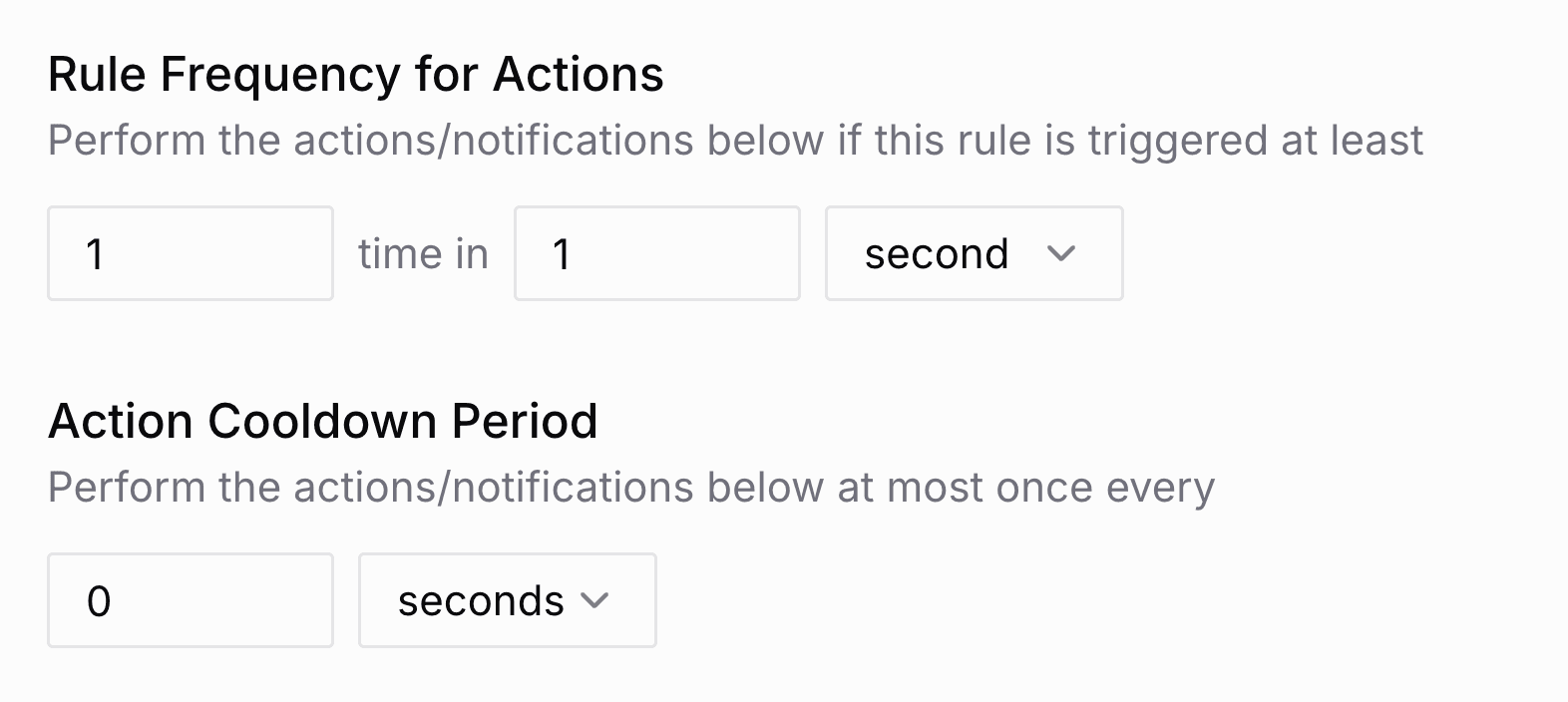
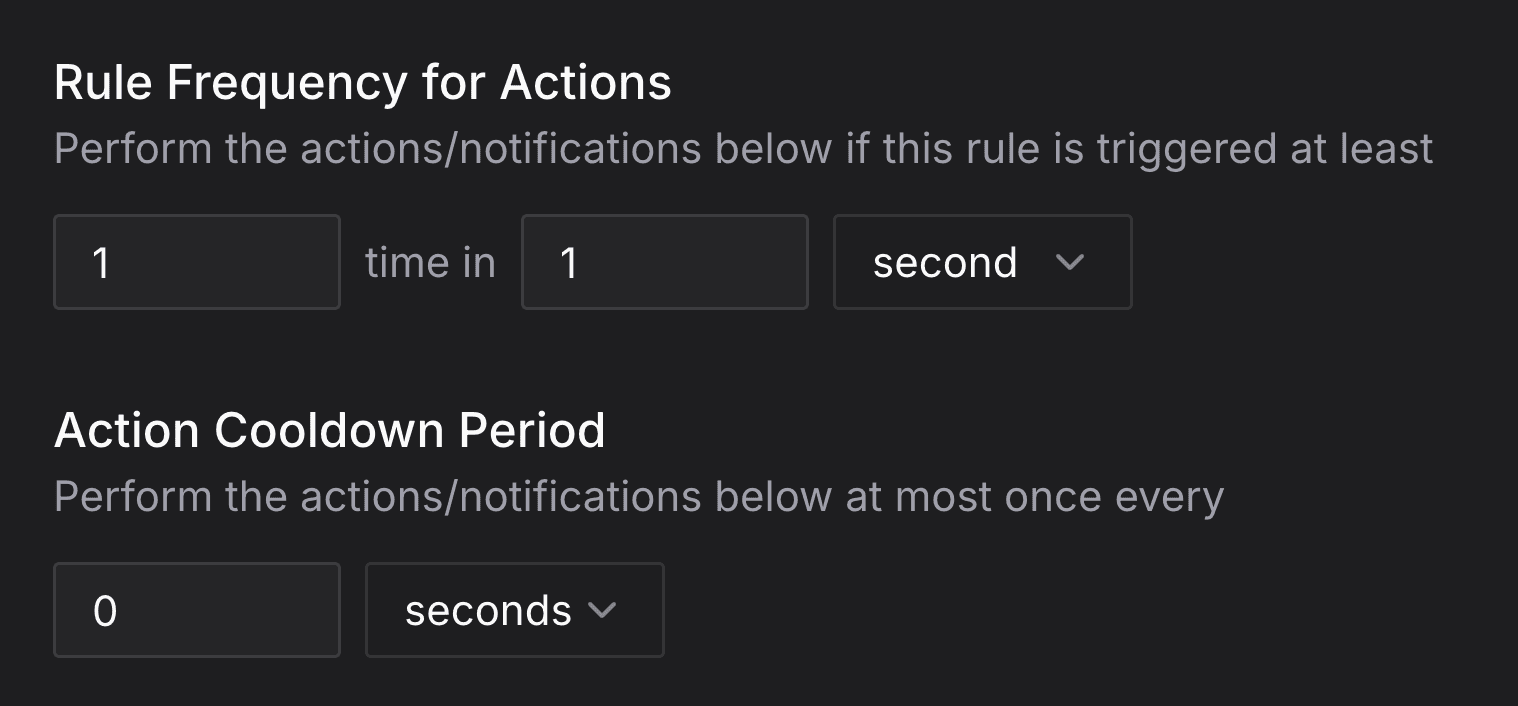
Set the frequency and cooldown for alerts and actions:
Action Frequency
Set minimum alerts within a time window before triggering alerts/actions:
Default: at least 1 alert within 1 second (every matching condition will trigger)
Action Cooldown Period
Set minimum time between consecutive alerts/actions:
Default: 0 seconds (no cooldown)
Managing Automations
Manage automations from the automations page: add, edit, or delete automations as needed.

