

Blocks
MDX
Basic Markdown
## Heading 2

### Heading 3

#### Heading 4

paragraph

- list
  - nested list

1. ordered list
2. ordered list

**strong**

_italic_

<ins>underline</ins>

[link](https://judgmentlabs.ai)
Callout
Info
<Callout type="info">This is an info callout</Callout>Warn
<Callout type="warn">This is a warn callout</Callout>Error
<Callout type="error">This is an error callout</Callout>Success
<Callout type="success">This is a success callout</Callout>Tip
<Callout type="tip">This is a tip callout</Callout>Cards
Card Group
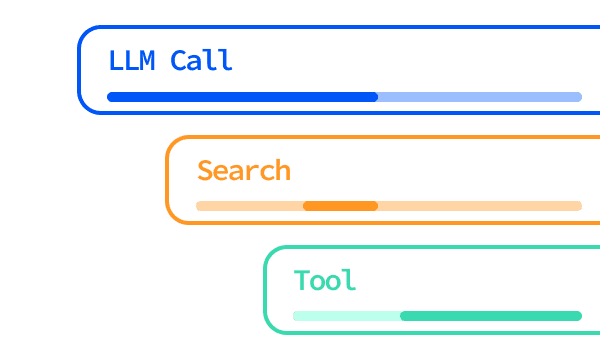
Tracing
Observe your agent's inputs/outputs, tool calls, and LLM calls to debug your agent runs.
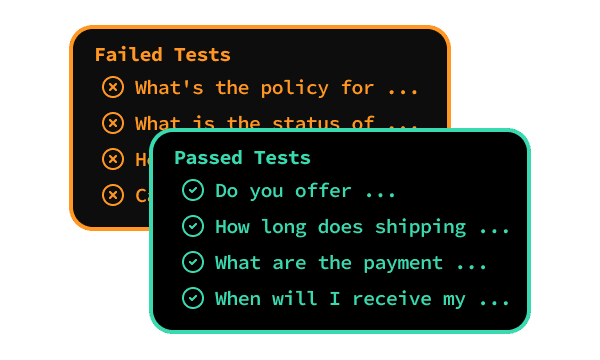
Unit Testing
Test your agent's tool calls, routing paths, and output quality at every step to catch regressions before they hit production.
Evaluation
Measure and optimize your agent along any quality metric, from hallucinations to tool-calling accuracy.Flag quality degradation in production and take automated actions to fix issues.
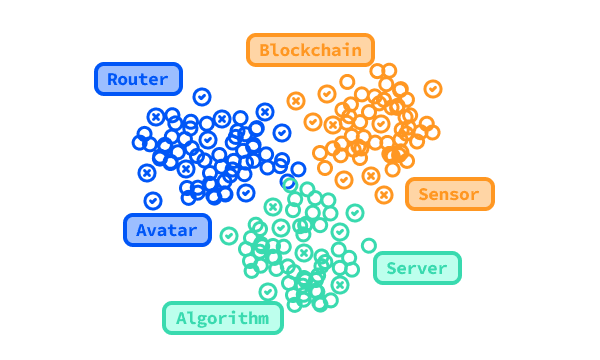
Datasets
Construct datasets from your agent interactions to test and evaluate your agent's performance.
<Cards>
  <Card href="/documentation/tracing/introduction">
    <MDXImage
      src="/images/monitoring.png"
      alt="Tracing Example"
      className="h-60 w-full rounded-t-lg object-cover"
    />
    <div>
      <h4 className="mb-1 text-xl font-medium">Tracing</h4>
      <span>
        Observe your agent's inputs/outputs, tool calls, and LLM calls to debug
        your agent runs.{" "}
      </span>
    </div>
  </Card>
  <Card href="/documentation/evaluation/unit_testing">
    <MDXImage
      src="/images/dark_unit_testing.png"
      alt="Unit Testing Card"
      className="h-60 w-full rounded-t-lg object-cover"
    />
    <div>
      <h4 className="mb-1 text-xl font-medium">Unit Testing</h4>
      <span>
        Test your agent's tool calls, routing paths, and output quality at every
        step to catch regressions before they hit production.
      </span>
    </div>
  </Card>
  <Card href="/documentation/evaluation/introduction">
    <MDXImage
      src="/images/experiments.png"
      alt="Evaluation Example"
      className="h-60 w-full rounded-t-lg object-cover"
    />
    <div>
      <h4 className="mb-1 text-xl font-medium">Evaluation</h4>
      <span>
        Measure and optimize your agent along any quality metric, from
        hallucinations to tool-calling accuracy.Flag quality degradation in
        production and take automated actions to fix issues.
      </span>
    </div>
  </Card>
  <Card href="/documentation/data-primitives/dataset">
    <MDXImage
      src="/images/insights_ss.png"
      alt="Datasets"
      className="h-60 w-full rounded-t-lg object-cover"
    />
    <div>
      <h4 className="mb-1 text-xl font-medium">Datasets</h4>
      <span>
        Construct datasets from your agent interactions to test and evaluate
        your agent's performance.
      </span>
    </div>
  </Card>
</Cards>
Call To Action (CTA)
Get your free API key
Adipisicing proident culpa Lorem culpa ut pariatur ullamco
<Card
  title="Get your free API key"
  href="https://judgmentlabs.ai"
  icon={<KeyRound className="text-amber-400" />}
  external
>
  Adipisicing proident culpa Lorem culpa ut pariatur ullamco
</Card>
Steps
To install the Judgment CLI, follow these steps:
Clone the repository
git clone https://github.com/JudgmentLabs/judgment-cli.gitNavigate to the project directory
cd judgment-cliSet up a fresh Python virtual environment
Choose one of the following methods to set up your virtual environment:
python -m venv venv
source venv/bin/activate  # On Windows, use: venv\Scripts\activate
pipenv shelluv venv
source .venv/bin/activate # On Windows, use: .venv\Scripts\activateInstall the package
pip install -e .pipenv install -e .uv pip install -e .<Steps>
<Step>
### Clone the repository
```bash
git clone https://github.com/JudgmentLabs/judgment-cli.git
```
</Step>
<Step>
### Navigate to the project directory
```bash
cd judgment-cli
```
</Step>
<Step>
### Set up a fresh Python virtual environment
Choose one of the following methods to set up your virtual environment:
<Tabs items={['pip', 'pipenv', 'uv']}>
<Tab value="pip">
```bash
python -m venv venv
source venv/bin/activate # On Windows, use: venv\Scripts\activate
```
</Tab>
<Tab value="pipenv">
```bash
pipenv shell
```
</Tab>
<Tab value="uv">
```bash
uv venv
source .venv/bin/activate  # On Windows, use: .venv\Scripts\activate
```
</Tab>
</Tabs>
</Step>
<Step>
### Install the package
<Tabs items={['pip', 'pipenv', 'uv']}>
<Tab value="pip">
```bash
pip install -e .
```
</Tab>
<Tab value="pipenv">
```bash
pipenv install -e .
```
</Tab>
<Tab value="uv">
```bash
uv pip install -e .
```
</Tab>
</Tabs>
</Step>
</Steps>Code block
Unnamed Block
import { Card } from "@components/ui";```ts
import { Card } from "@components/ui";
```Named Block
from components.ui import Card```py title="main.py"
from components.ui import Card
```Tab Blocks
py from components.ui import Card ts import {Card} from '@components/ui' <Tabs items={["Python", "TypeScript"]}>
<Tab value="Python">```py from components.ui import Card ```</Tab>
<Tab value="TypeScript">```ts import {Card} from '@components/ui' ```</Tab>
</Tabs>Inline Highlighting
One fish, Two fish, Red fish, Blue fish,
Black fish, Blue fish, Old fish, New fish.
This one has a console.log("hello world") car.
This one has a print("hello world") star.
Say! What a lot of fish there are.
One fish, Two fish, Red fish, Blue fish,

Black fish, Blue fish, Old fish, New fish.

This one has a `console.log("hello world"){:ts}` car.

This one has a `print("hello world"){:py}` star.

Say! What a lot of fish there are.
Shiki Transformers
We support Shiki Transformers for syntax highlighting. https://shiki.matsu.io/packages/transformers
    from openai import OpenAI
    from somethingelse import observe, get_client
    from judgeval import Tracer, wrap

    Tracer.init(project_name="default_project")
    client = wrap(OpenAI())  # tracks all LLM calls

    @observe
    @Tracer.observe(span_type="tool")
    def format_task(question: str) -> str:
        return f"Please answer the following question: {question}"

    @Tracer.observe(span_type="tool")
    def answer_question(prompt: str) -> str:
        response = client.chat.completions.create(
            model="gpt-5.2",
            messages=[{"role": "user", "content": prompt}]
        )
        return response.choices[0].message.content

    @Tracer.observe(span_type="function")
    def run_agent(question: str) -> str:
        task = format_task(question)
        answer = answer_question(task)

        Tracer.async_evaluate(
            judge="Helpfulness Scorer",
        )

        return answer

    if __name__ == "__main__":
        result = run_agent("What is the capital of the United States?")
        print(result)
Accordion
Single Accordion
Only 1 can be open at a time
<Accordions type="single">
  <Accordion title="Tracing">
    Observe your agent's inputs/outputs, tool calls, and LLM calls to debug your
    agent runs.
  </Accordion>
  <Accordion title="Unit Testing">
    Test your agent's tool calls, routing paths, and output quality at every
    step to catch regressions before they hit production.
  </Accordion>
</Accordions>
Multiple Accordion
Multiple can be open
<Accordions type="multiple">
  <Accordion title="Tracing">
    Observe your agent's inputs/outputs, tool calls, and LLM calls to debug your
    agent runs.
  </Accordion>
  <Accordion title="Unit Testing">
    Test your agent's tool calls, routing paths, and output quality at every
    step to catch regressions before they hit production.
  </Accordion>
</Accordions>
API
hypotenuse()
Calculates the hypotenuse of a right triangle given the lengths of the two legs.
Parameters
Example Code
leg_a = 3.0
leg_b = 4.0

hyp = hypotenuse(leg_a, leg_b)

print(f"The hypotenuse with legs {leg_a} and {leg_b} is {hyp}")
Returns
The length of the hypotenuse as a float.
Example Return Value
5.0<API>
{/* Top Row (blue) */}
<APIHeader>
## `hypotenuse(){:py}`
Calculates the hypotenuse of a right triangle given the lengths of the two legs.
</APIHeader>
{/* Row 1: Two-column layout (purple) */}
<APISection>
{/* Left column (red) */}
<APIList title="Parameters">
<APIParameter>
<APIParameterHeader type="float" default="None" required>
### `leg_a`
</APIParameterHeader>
<APIParameterDescription>
The length of the first leg
</APIParameterDescription>
<APIParameterExample>
```py
3.0
```
</APIParameterExample>
</APIParameter>
<APIParameter>
<APIParameterHeader type="float" default="None" required>
### `leg_b`
</APIParameterHeader>
<APIParameterDescription>
The length of the second leg
</APIParameterDescription>
<APIParameterExample>
```py
4.0
```
</APIParameterExample>
</APIParameter>
</APIList>
{/* Right column (green) */}
<APISnippets>
<APISnippet title="Example Code">
```py title="hypotenuse.py"
leg_a = 3.0
leg_b = 4.0
hyp = hypotenuse(leg_a, leg_b)
print(f"The hypotenuse with legs {leg_a} and {leg_b} is {hyp}")
```
</APISnippet>
</APISnippets>
</APISection>
{/* Row 2: Two-column layout (purple) */}
<APISection>
{/* Left column (red) */}
<APIList title="Returns">
<APIParameter>
<APIParameterDescription>
The length of the hypotenuse as a `float`.
</APIParameterDescription>
</APIParameter>
</APIList>
{/* Right column (green) */}
<APISnippets>
<APISnippet title="Example Return Value">
```py
5.0
```
</APISnippet>
</APISnippets>
</APISection>
</API>Last updated on