

Rules and Alerts
Set up rules to automatically notify you or perform actions when your agent misbehaves in production.
Rules define conditions on evaluation metrics. When conditions are met, rules trigger alerts that can send notifications or execute actions.
Overview
Rules monitor metrics including:
- Static metrics (Trace Duration, LLM Cost)
- Built-in scorers (Faithfulness, Answer Relevancy, etc.)
- LLM Judges (Prompt Scorers) and Server-hosted Code Judges (Custom Scorers)
Each rule has conditions that determine when to trigger alerts. You can configure alert frequency thresholds and cooldown periods to control when notifications or actions execute.
Create a Rule
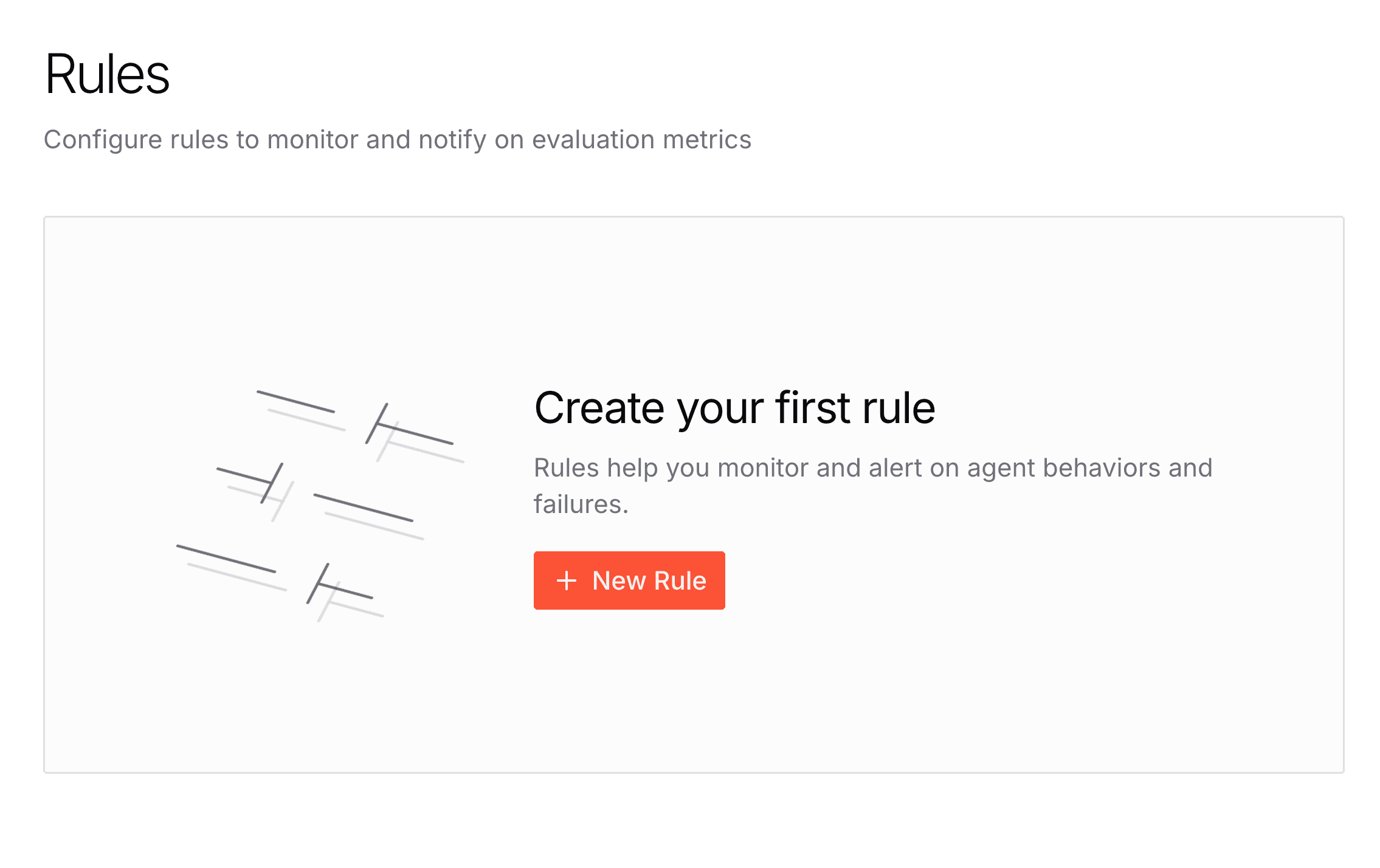
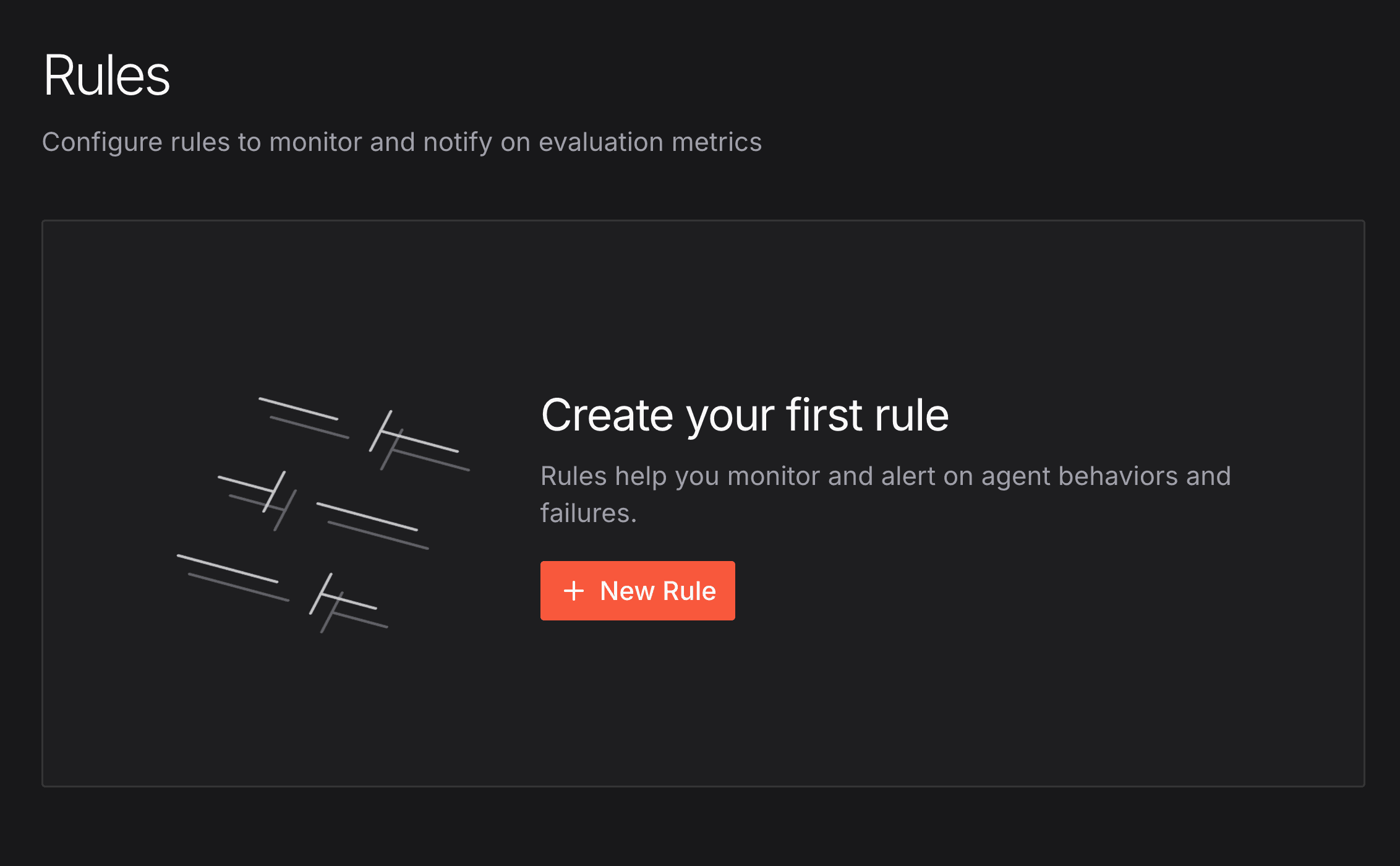
Create rules from your project's Monitoring section by clicking "Create New Rule".
Rule Configuration


- Rule Name: Descriptive name (required)
- Description: Optional purpose explanation
Filter Conditions
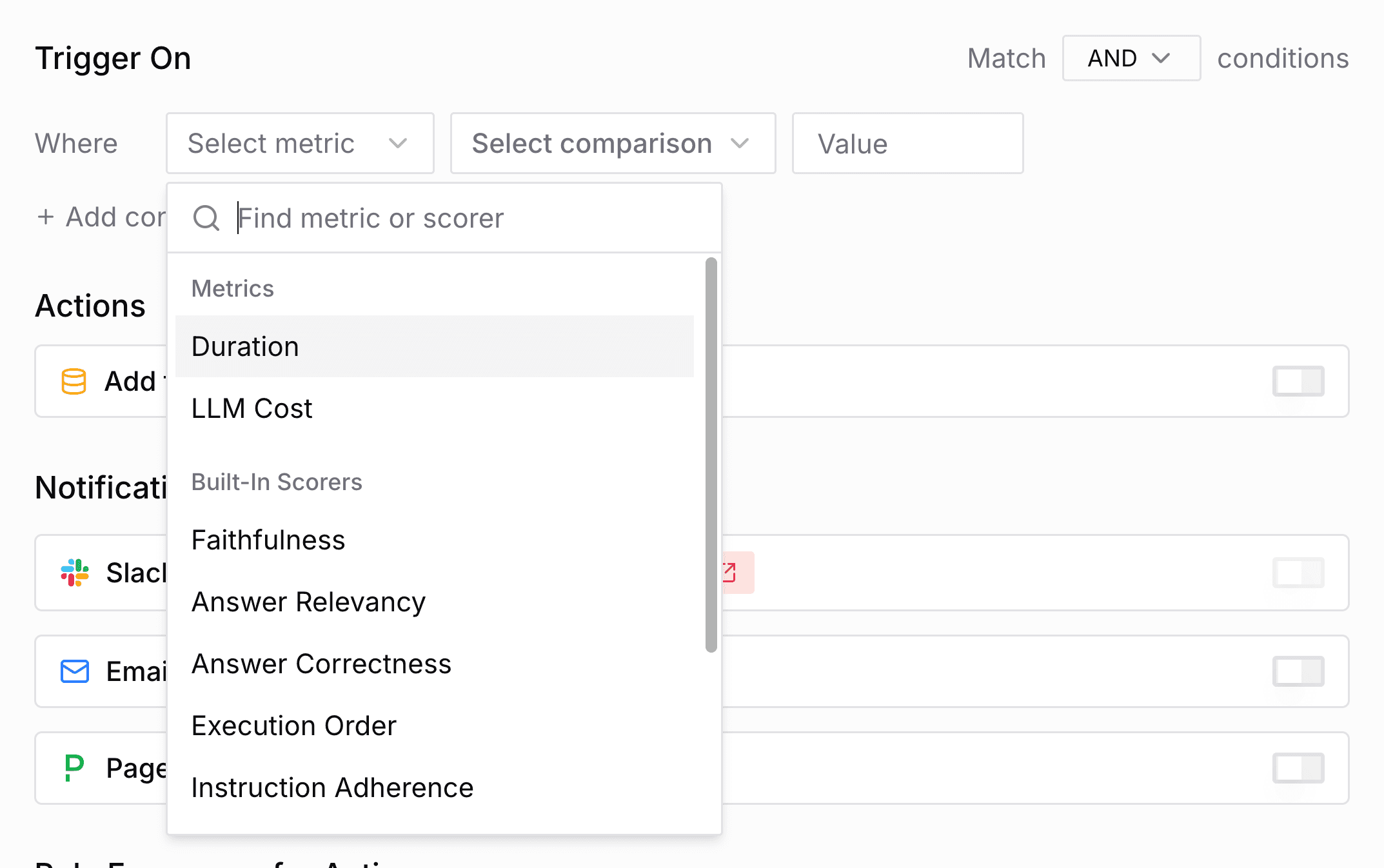
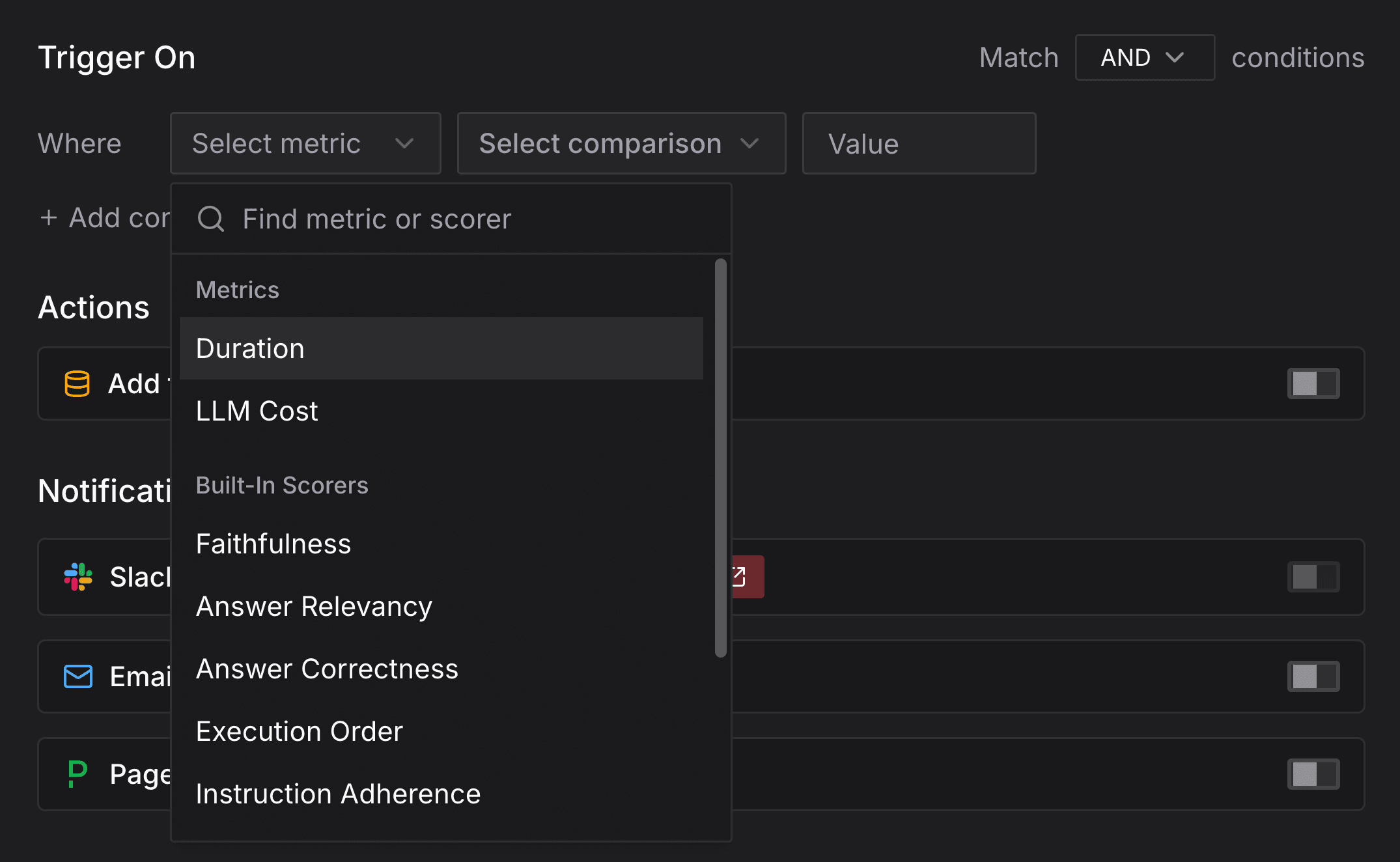
Define when the rule triggers:
- Match Type: "AND" (all conditions) or "OR" (any condition)
- Conditions: Add one or more conditions with:
- Metric: Built-in scorers, LLM Judges (Prompt Scorers), hosted Code Judges (Custom Scorers), or static metrics
- Operator: Comparison (
>=,<=,==,<,>) or success condition (succeeds,fails) - Value: Threshold value (comparison operators only)
You can add multiple conditions with the "Add condition" button.
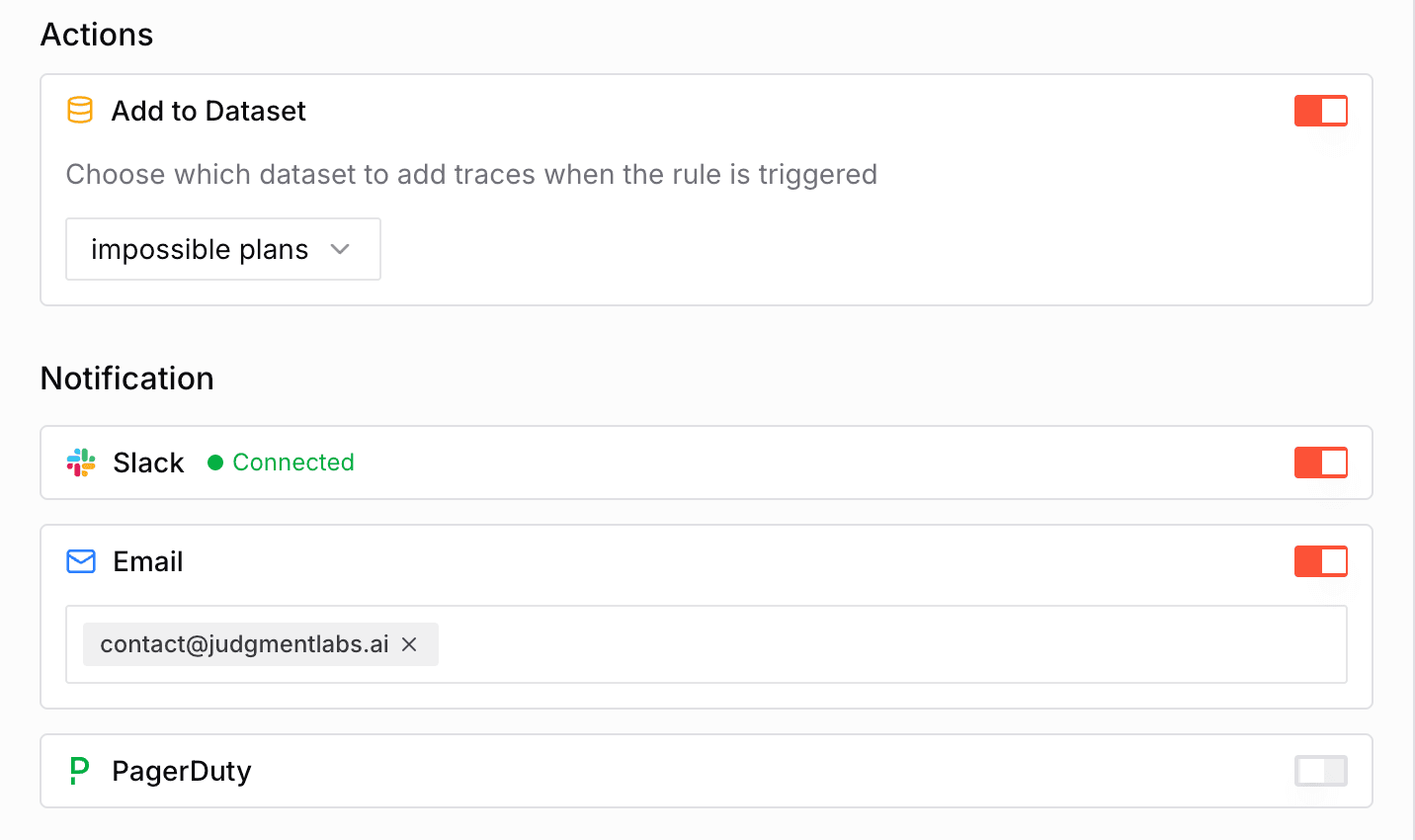
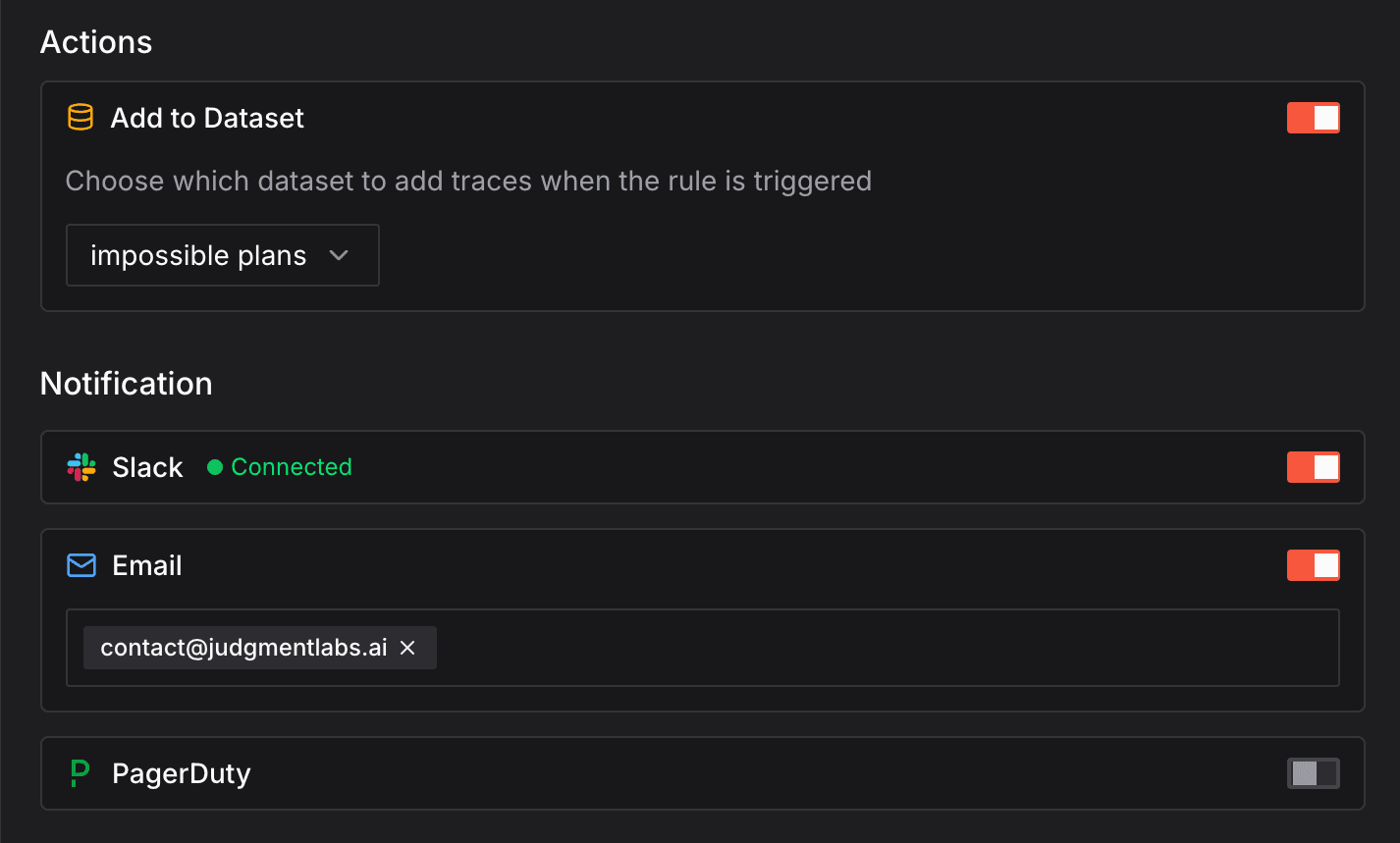
Actions and Notifications
Configure what executes when alert frequency is met and cooldown has expired:
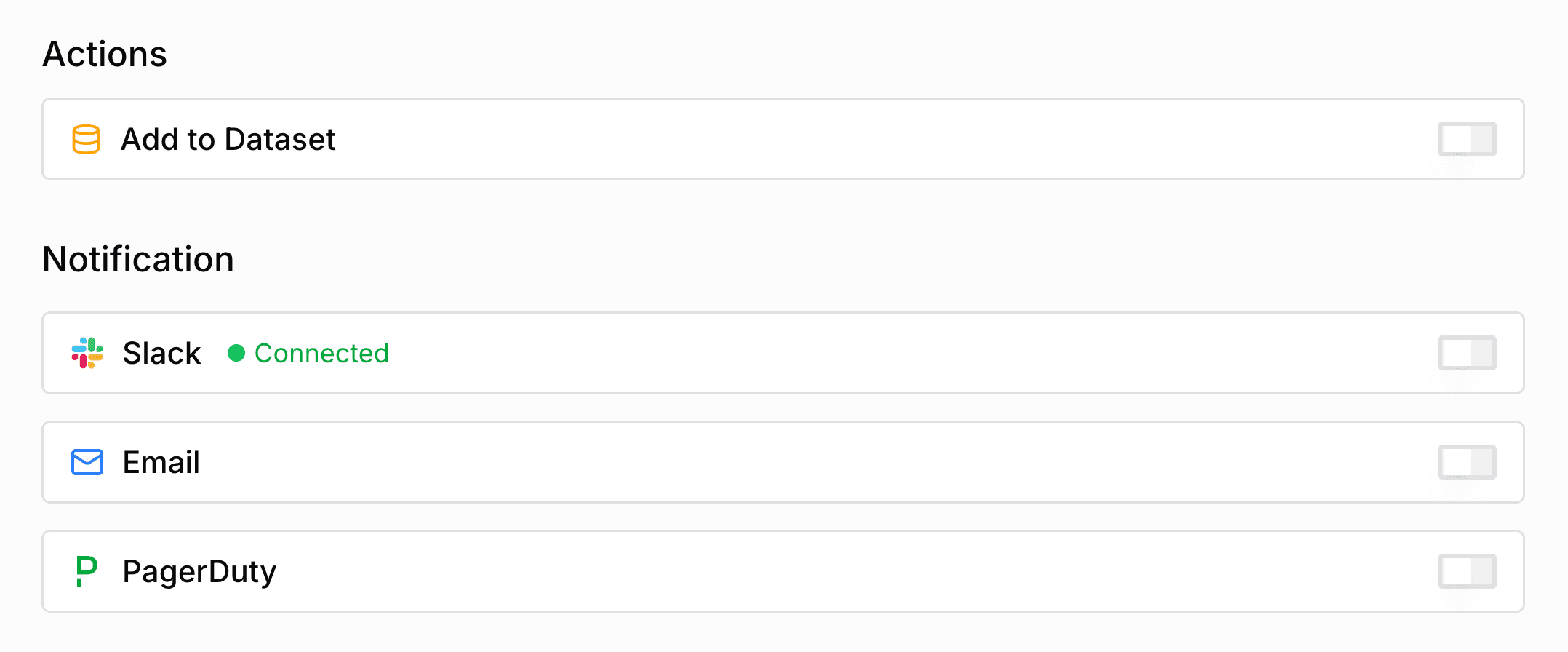
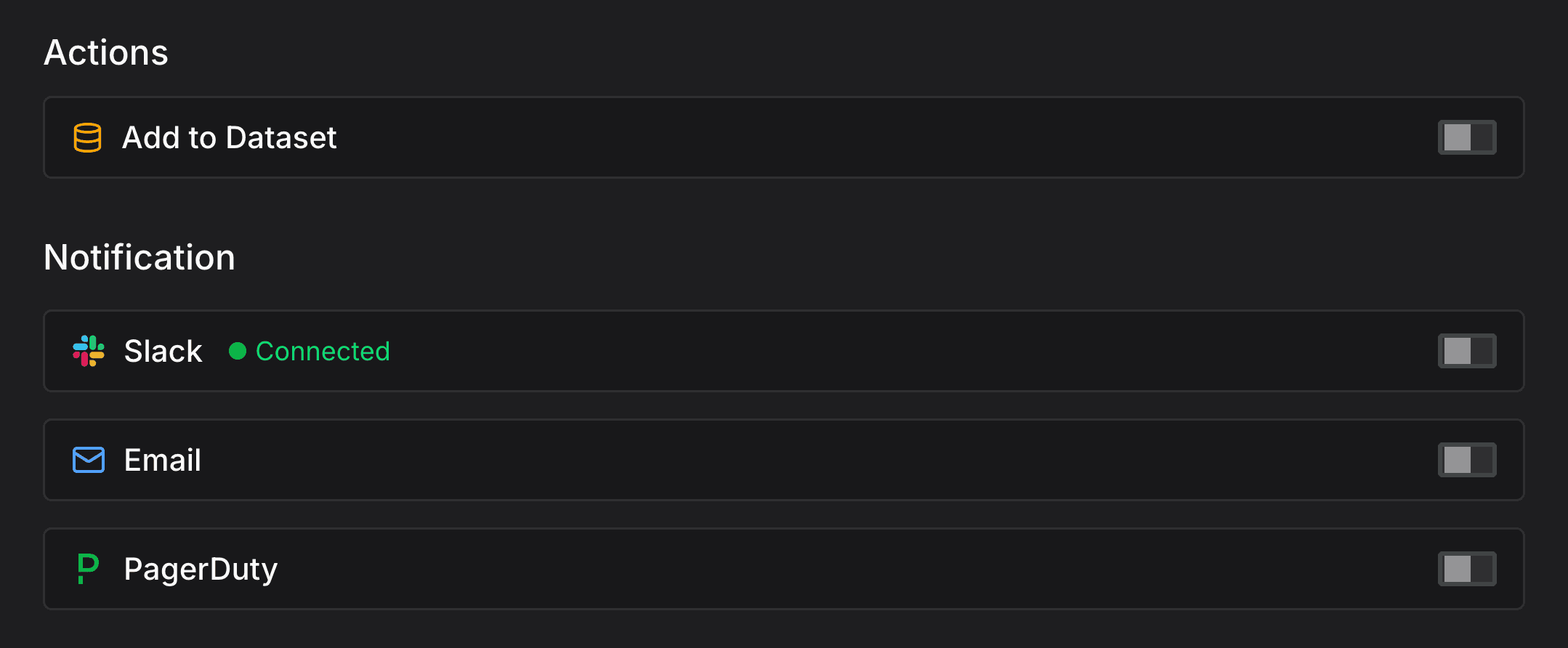
Below are the available actions and notifications:
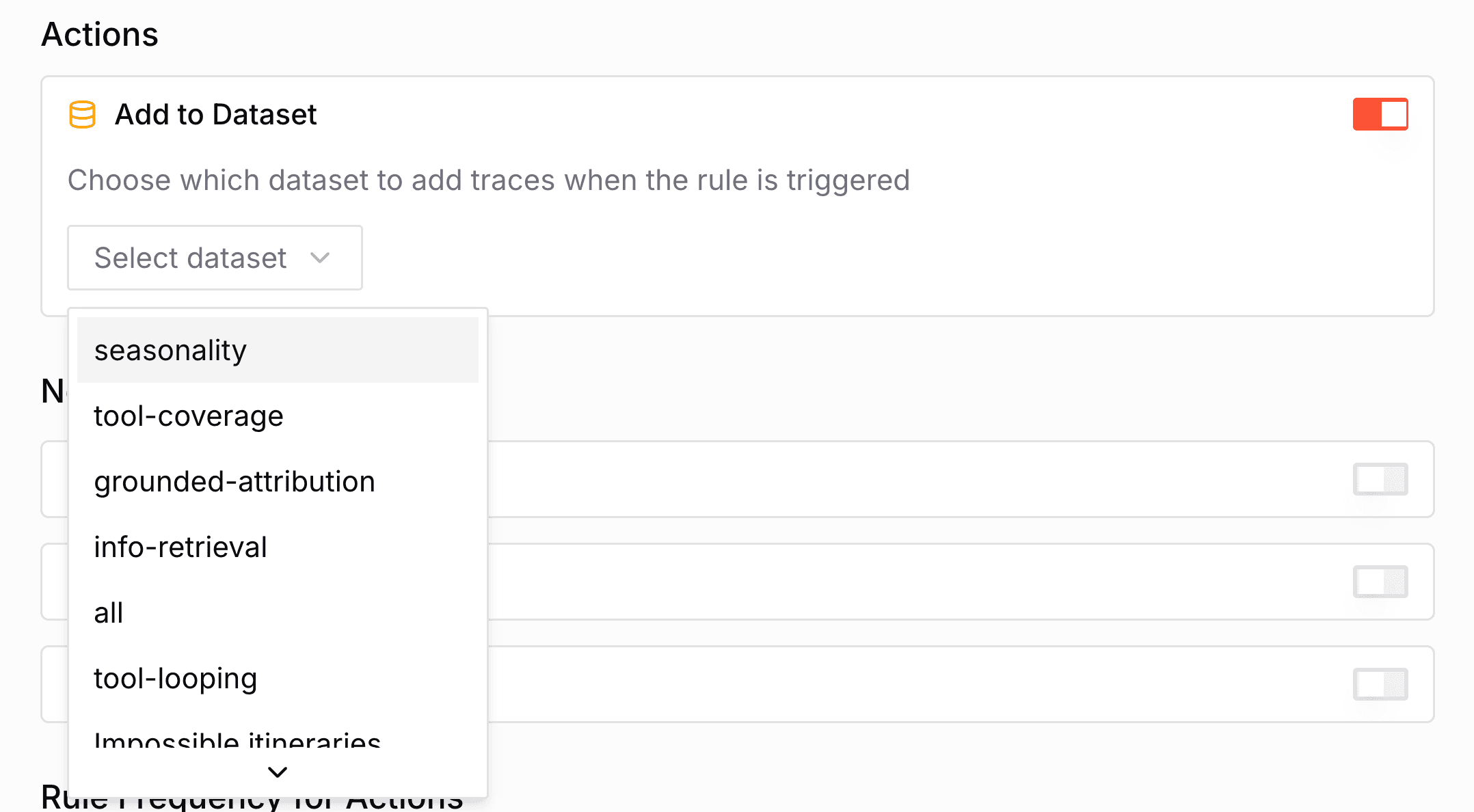
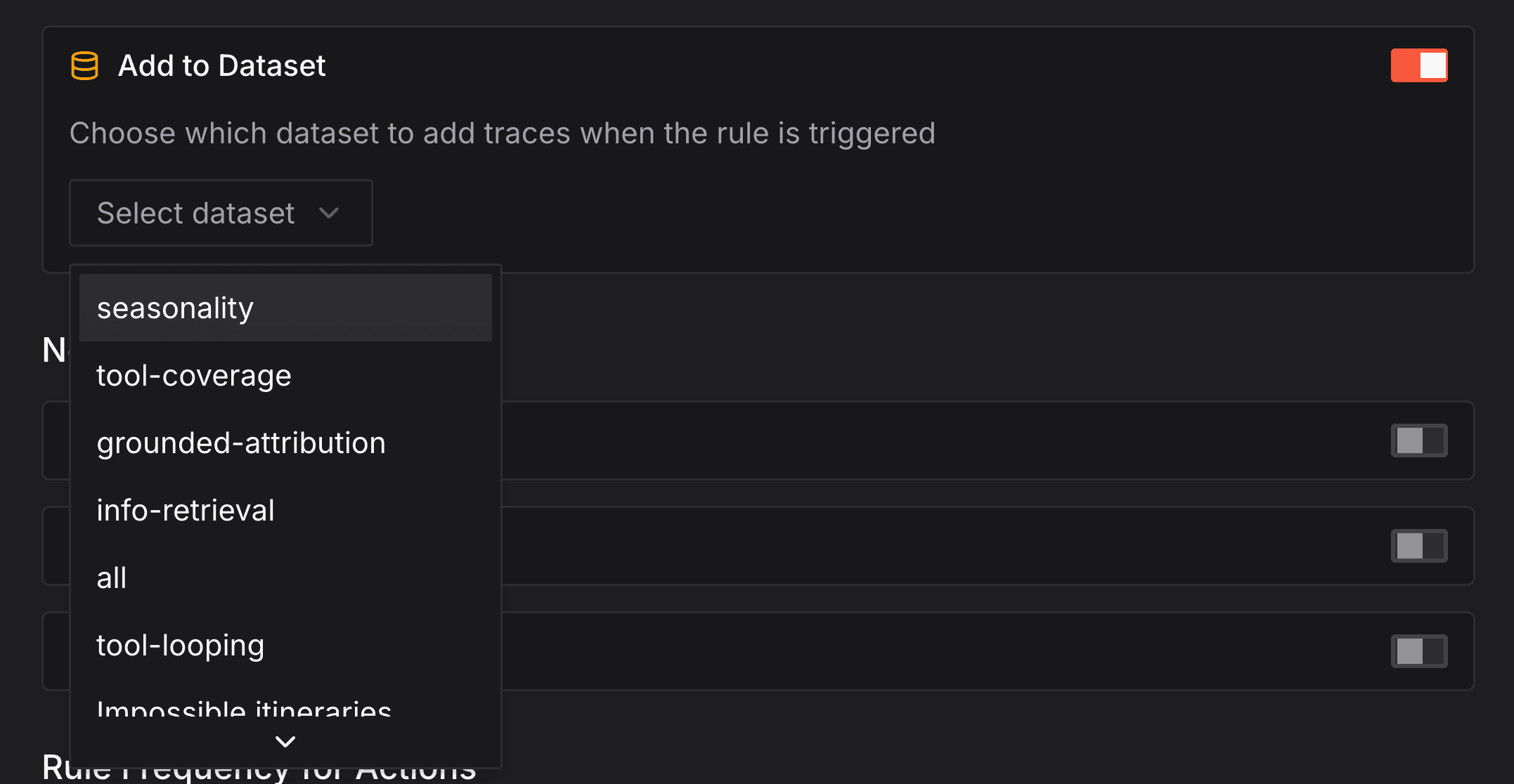
Add to Dataset
Automatically add traces with failing evaluations to a dataset. Select target dataset from dropdown.
Email Notifications
Send notifications to specified email addresses.


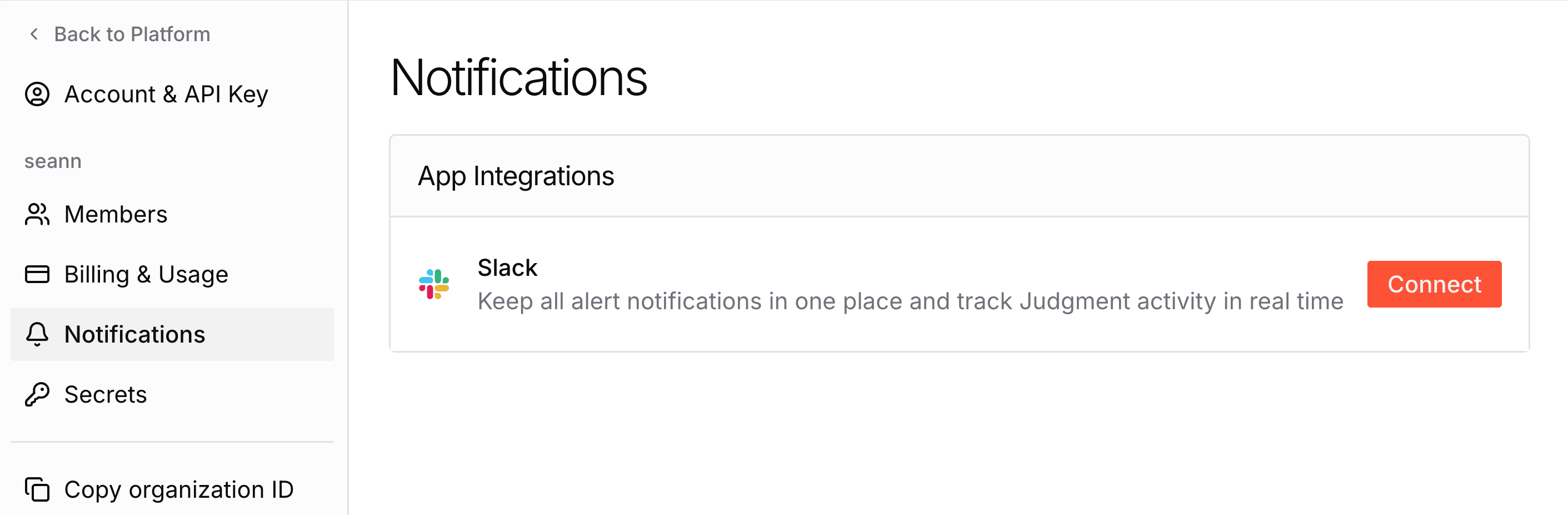
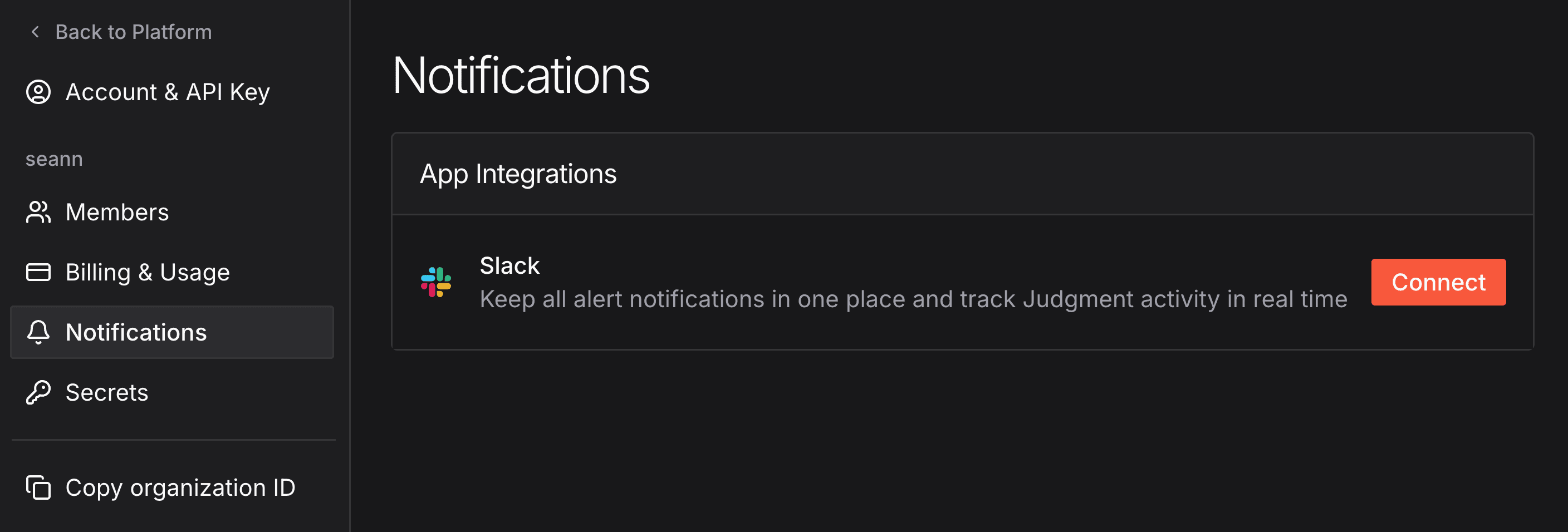
Slack Integration
Post alerts to Slack channels. Connect Judgment to Slack via Settings → Notifications → App Integrations, then select channels for each rule.


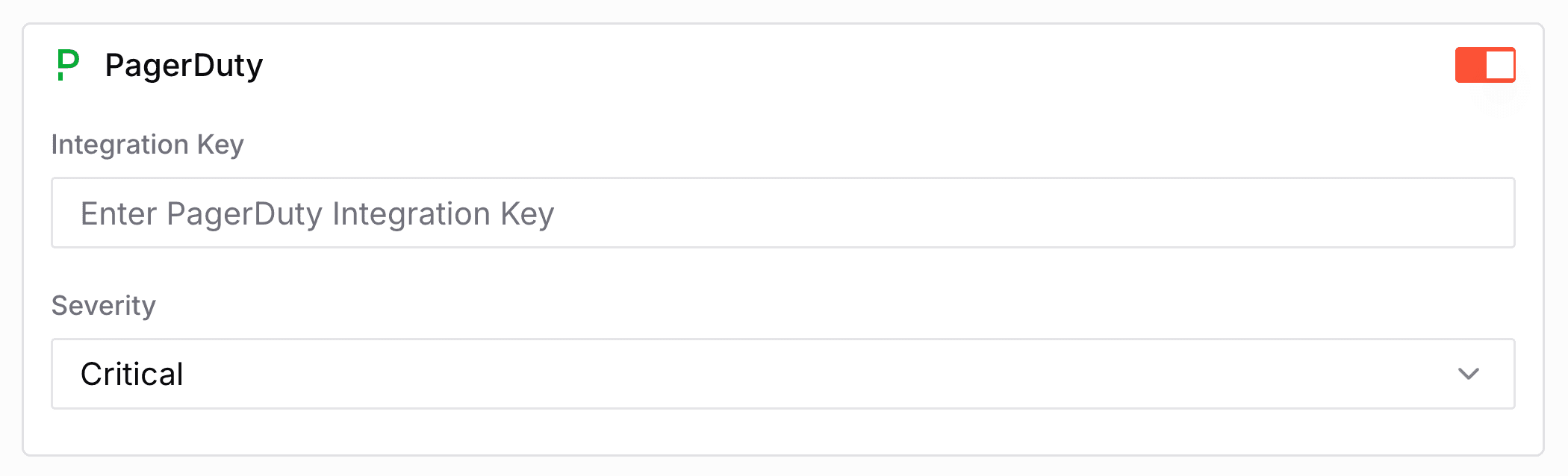
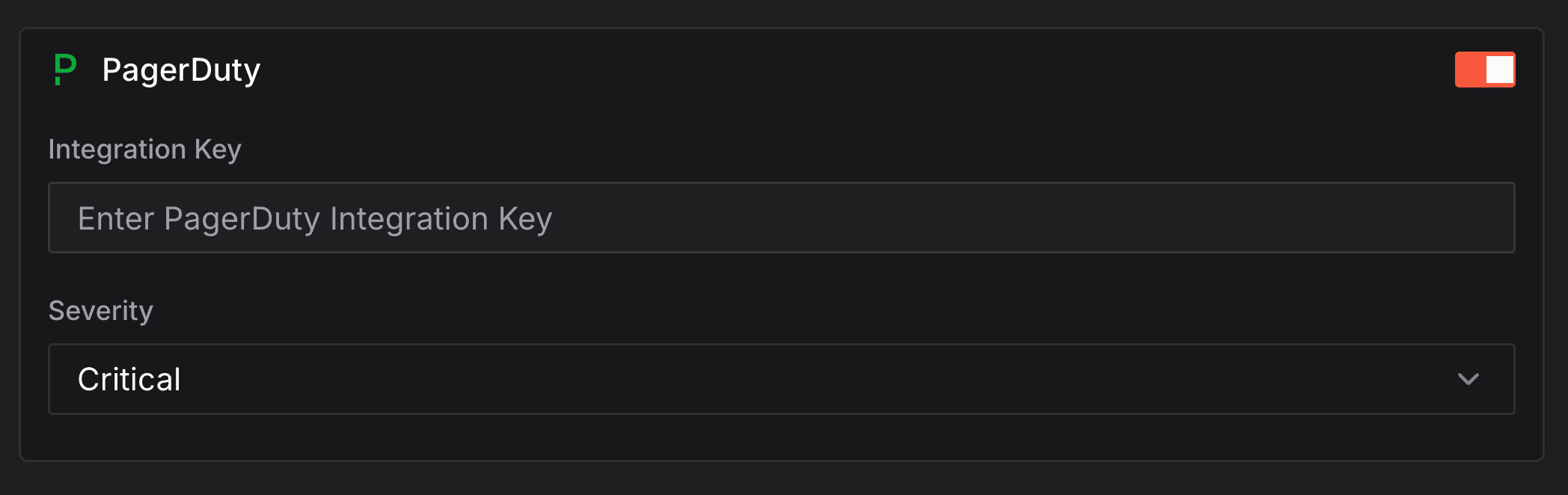
PagerDuty Integration
Create incidents for critical issues. Configure integration keys and severity levels.
Advanced Configuration
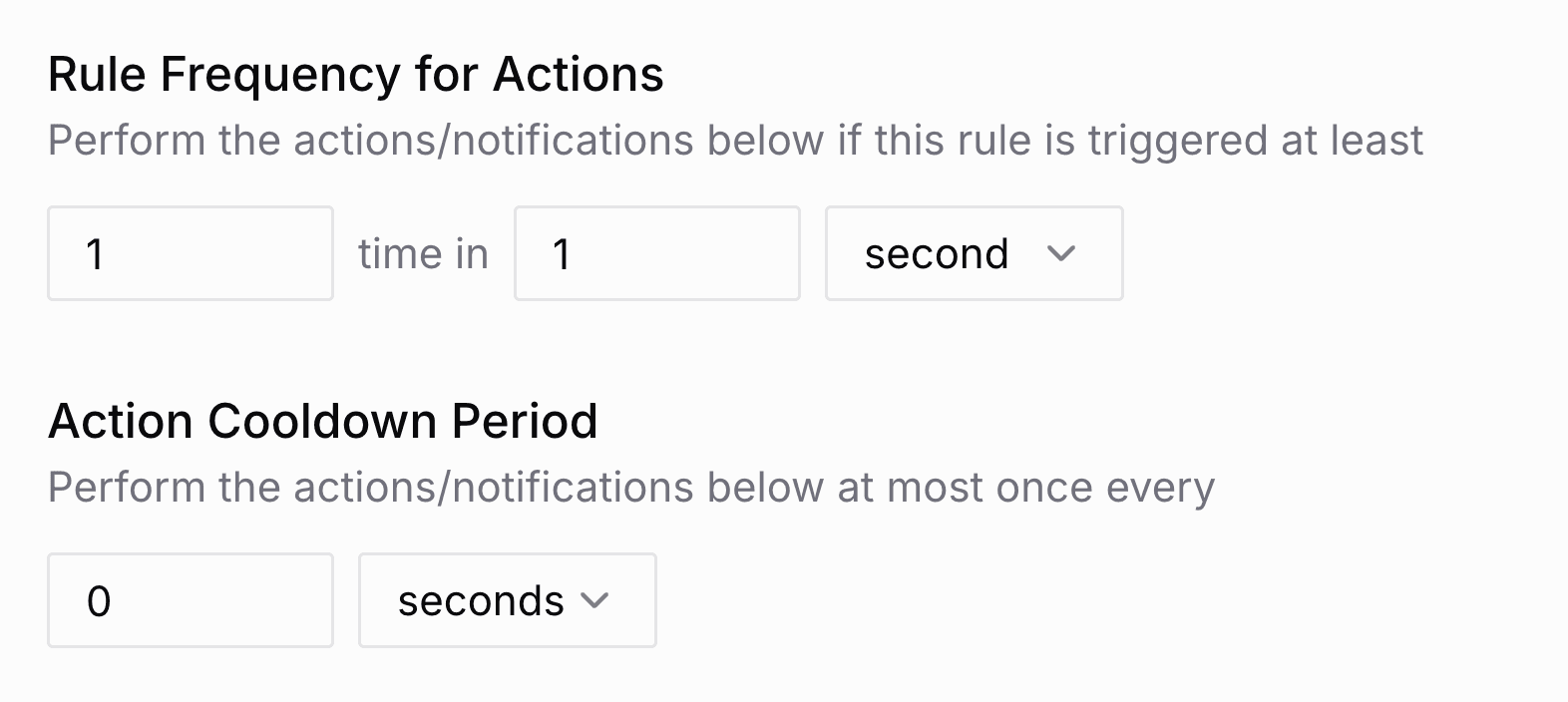
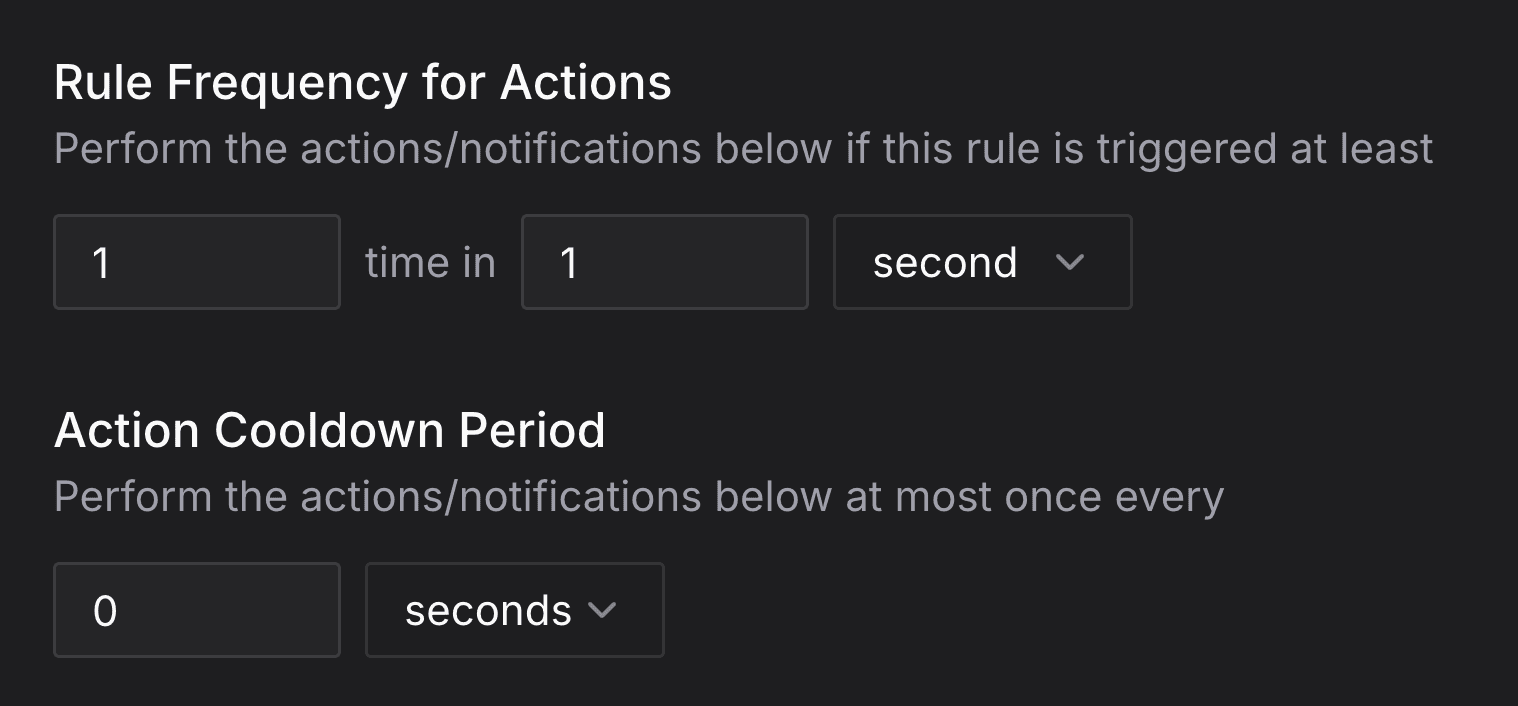
Set the frequency and cooldown for alerts and actions:
Rule Action Frequency
Set minimum alerts within a time window before triggering alerts/actions:
Default: at least 1 alert within 1 second (every matching condition will trigger)
Action Cooldown Period
Set minimum time between consecutive alerts/actions:
Default: 0 seconds (no cooldown)
Managing Rules
Manage rules from the rules page: add, edit, or delete rules as needed.

